
The Workflow
Reference
Fissile Material
- What is Fissile Material?
- Fissile Exception (a) - Mass Limit ≤2g
- Fissile Exception (b) - Non-fissile Ratio ≤15g
- Fissile Exception (c) - Low Concentration Solid
- Fissile Exception (d) - Low-Enriched Uranium (LEU)
- Fissile Exception (e) - Uranyl Nitrate Solution
- Fissile Exception (f) - Low-Concentration Plutonium
- Fissile Material - Troubleshooting & Common Mistakes
Showing 17 of 17 sections
Welcome to RadShip.com
This guide gets you from sign-in to a finished, compliant shipping paper. In a few minutes you'll classify a package, apply the right label, and generate the documents that go with the shipment.
What RadShip.com Helps You Do
RadShip.com simplifies DOT and IATA compliance for radioactive material shipments — classification, labeling, and shipping papers in one flow, with the regulation cited at every step so you can verify the answer yourself.
Your Main Tools
- The Classifier (RAMcalc) — describe what you're shipping and get the full classification: UN number, proper shipping name, package category (Excepted, Type A, Type B), label category, transport index, and the 49 CFR citations behind each determination.
- LabelCalc — determine the correct shipping label (White-I, Yellow-II, or Yellow-III) from dose-rate measurements.
- My Consignments — assemble saved packages into a shipment and generate the Bill of Lading (ground) or Dangerous Goods Declaration (air), with the shipment tracked from Draft through Shipped.
The Workflow: From Source Term to Signed Shipping Paper
Every shipment follows the same arc through the app:
- Classify. Enter your source term — the radionuclides, activities, physical and material forms (and masses where limits depend on them). The engine walks the 49 CFR elimination tree and returns the UN number, proper shipping name, and package category, with the citation behind each determination. (Using the Classifier)
- Add transport details and review the results. Package survey readings give you the Transport Index, label category, and placards; decay dates classify at ship-date activities; air mode applies the IATA overlay — all explained card by card on the results page. (Review and Classify · Review the Results)
- Save the package. Saved packages live under My Packages — inputs, results, and engine version — and every save is re-verified server-side. (Save the Package · Managing Packages)
- Build the consignment. Add one or more saved packages, then the parties: shipper, consignee, carrier, and 24-hour emergency contact — all prefilled from your saved Shipment Settings. (Start the Consignment · Shipment Settings)
- Generate the paper. A Bill of Lading for ground or a Dangerous Goods Declaration for air, built from the verified classifications; completeness advisories flag anything missing before you print. (Preview, Save & Generate · Air / DGD)
- Finalize and ship. The consignment moves Draft → Final → Shipped and becomes a permanent record — reprints reproduce the paper exactly as generated. (The Lifecycle)
Before You Begin
- Your RadShip.com account created and verified
- An active subscription (or free trial)
- Information about the material: radionuclide(s), activity, physical/chemical form — and mass, if you'll be evaluating exempt or LSA limits
Ready? Continue to the next section to run your first classification.
The Classifier: From Material to Classification
The classifier walks you through describing your material, then the engine determines the classification — with the governing regulation cited on every result.
Step 1: Start from the Dashboard
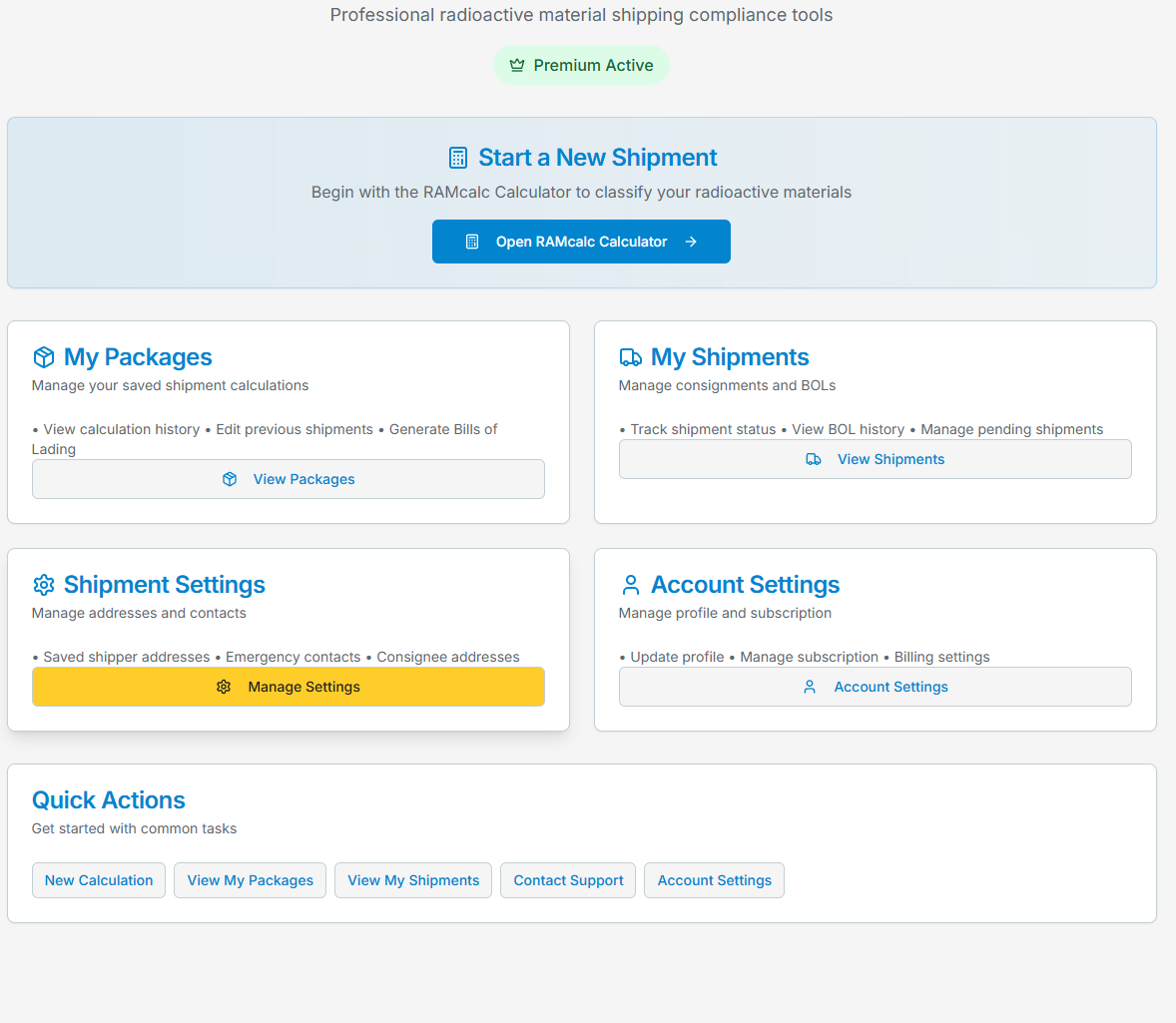
Your Dashboard is home base for every shipment:
- Start a New Shipment — opens the RAMcalc classifier; every shipment begins with a classification
- My Packages — your saved classifications: view history, edit previous shipments, generate papers
- My Shipments — your consignments and BOLs: track status, view BOL history, manage pending shipments
- Shipment Settings — saved shipper/consignee addresses, emergency contacts, carriers, and BOL branding
- Account Settings — profile, subscription, and billing
- Quick Actions — one-click shortcuts to the common tasks
Click Open RAMcalc Calculator (or RAMcalc in the top navigation) to begin.
Step 2: Tell It What You're Shipping
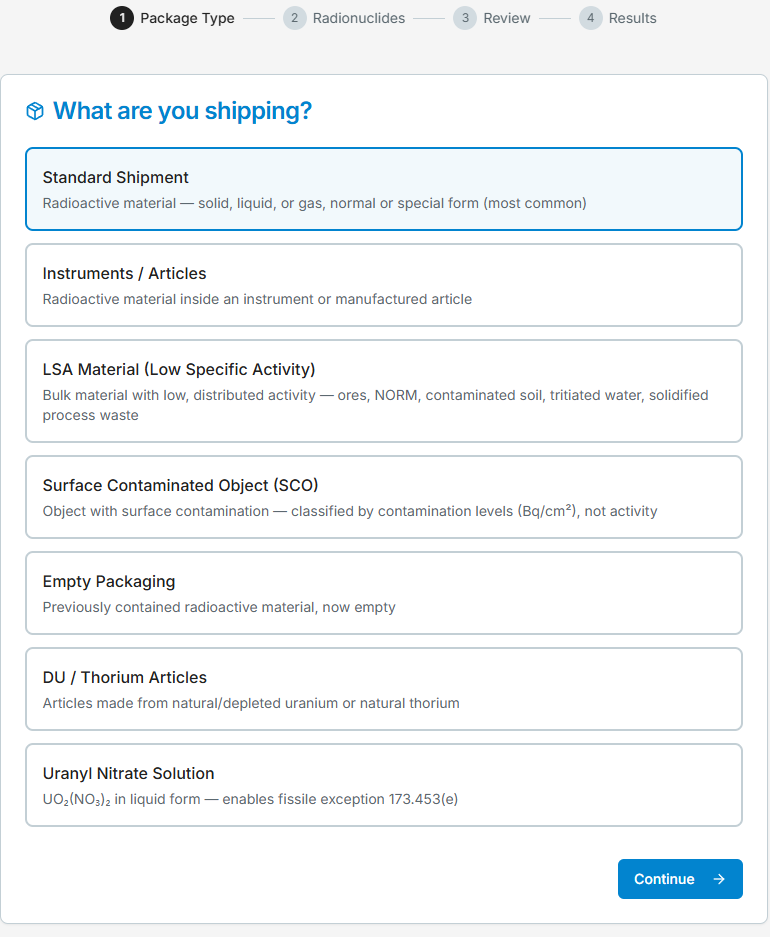
Start by choosing the option that best describes your shipment. Each card routes your material into a different regulatory evaluation, and each can only produce certain UN numbers — here is what each one actually covers:
Standard Shipment (most common)
The full elimination tree for radioactive material — solid, liquid, or gas, normal or special form, sealed sources included. The engine works down the tree and stops at the first classification your material satisfies:
- Exempt Material — activity and concentration below the exempt limits (ALEC / ACEM values per 49 CFR 173.436): not regulated as Class 7, no UN number
- UN2910, Radioactive material, excepted package—limited quantity of material — small quantities meeting the excepted-package activity and dose limits
- UN2915, Radioactive material, Type A package — within A1/A2 limits, normal form; UN3332, Type A package, special form — for special-form (sealed-source) material
- UN2916 / UN2917, Radioactive material, Type B(U) / Type B(M) package — beyond A1/A2 limits (your package approval type selects between them)
If the shipment contains fissile nuclides (U-233, U-235, Pu-239, Pu-241…), this path also runs the 49 CFR 173.453 fissile-exception evaluation. Material that meets an exception ships under the UN numbers above; material that doesn't becomes the fissile entry instead — UN3327 (Type A, fissile), UN3333 (Type A, special form, fissile), or UN3328 / UN3329 (Type B(U)/B(M), fissile) — with criticality safety requirements on the results. Every result on this path is also checked for reportable quantity (RQ) and highway route controlled quantity (HRCQ).
Instruments / Articles
Radioactive material contained in an instrument or manufactured article (gauges, detectors, calibration devices). Evaluates the excepted-package route — UN2911, Radioactive material, excepted package—instruments or articles — against both per-article and per-package limits, with one entry row per article. If the limits don't hold, classification continues down the standard Type A/B path automatically.
LSA Material (Low Specific Activity)
Bulk material with low, distributed activity — ores, NORM, contaminated soil, tritiated water, solidified process waste. You pick the material profile and the classifier asks the questions 49 CFR 173.403 requires (your attestations are recorded with the saved package). Produces UN2912 (LSA-I), UN3321 (LSA-II), or UN3322 (LSA-III).
Surface Contaminated Object (SCO)
An object that is not itself radioactive but carries surface contamination — classified by the measured contamination levels (Bq/cm², non-fixed and total), not by activity content. Produces UN2913, Radioactive material, surface contaminated objects (SCO-I or SCO-II by contamination level).
Empty Packaging
Packaging that previously contained radioactive material and is now empty — evaluates the conditions for UN2908, Radioactive material, excepted package—empty packaging.
DU / Thorium Articles
Articles manufactured from natural or depleted uranium or natural thorium — evaluates UN2909, Radioactive material, excepted package—articles manufactured from natural uranium / depleted uranium / natural thorium (the proper shipping name names the specific material you select).
Uranyl Nitrate Solution
UO₂(NO₃)₂ in liquid form. Asks for the nitrogen-to-uranium ratio and evaluates fissile exception 49 CFR 173.453(e); solution that meets it ships under the otherwise-applicable UN number from the standard tree without fissile controls.
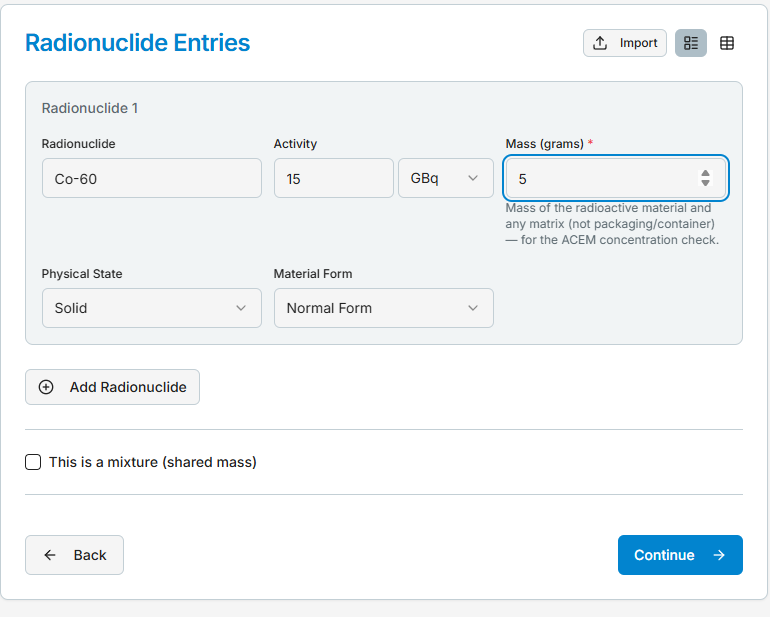
Step 3: Enter Your Radionuclides
Add a row per radionuclide. Type the symbol (e.g. "Co-60") to search. For each entry provide activity and unit (Bq family or Ci family), material form (Normal or Special Form), and physical state. Enter the mass where the flow asks for it — exempt-concentration and LSA math need it, and the classifier will tell you when it's required rather than silently skipping the evaluation.
Shipping a uniform bulk material (soil, sludge, resin)? Check mixture and enter the total mixture mass — see the "Individual Masses vs. Mixture Mode" section for when each applies.
You can also switch between card view and table view for many-nuclide entries, and Import a list instead of typing it — see "Importing Nuclide Data."
Step 4: Review and Classify
The Review step is the last stop before classification. The top of the page recaps what you've entered — the package type and each radionuclide with its activity, mass, and form (use Back to change anything). Below the recap are three groups of transport inputs. All three are optional — Classify Shipment runs without them — but each one you fill in unlocks a concrete set of results, and those results follow the package onto its shipping papers.
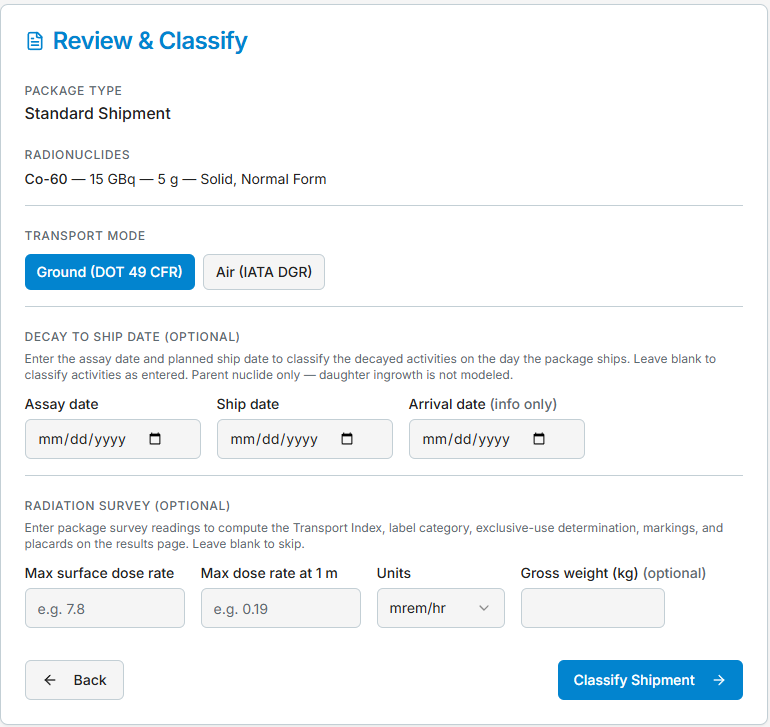
Transport Mode — Ground (DOT 49 CFR) or Air (IATA DGR)
Selects the regulatory overlay. Ground applies 49 CFR alone; Air adds the IATA DGR evaluation on top of the classification and asks for the shipment's intended use — under 49 CFR 175.700(a), Class 7 may fly on a passenger aircraft only if for research or medical use. The mode is saved with the package and determines its paper: ground packages build toward a BOL, air packages toward a DGD, and ground-only reliefs are never offered on an air package.
Decay to Ship Date
Enter the assay date and planned ship date and the engine decays every activity to the ship date before classifying — you classify the package you will actually tender, not the one on last month's assay certificate. Parent nuclide only; daughter ingrowth is not modeled. The optional arrival date adds an informational projection only — classification, labels, and shipping-paper activity are always determined at the ship date.
Radiation Survey
Takes the package survey readings — max surface dose rate and max dose rate at 1 m — in your choice of units (mrem/hr or mSv/h), plus an optional gross weight that rides along to the shipping papers' weight fields. These readings drive the Transport Index, label, and placard determinations on the results page. Double-check the units selector matches your instrument before classifying: a mrem/hr reading entered as mSv/h (or the reverse) is a 100× error on every transport determination. Both dose rates are needed — a single reading can't support the label determination.
Ready? Click Classify Shipment.
Step 5: Review the Results
The results page assembles everything the engine determined, card by card, top to bottom. Every determination carries its 49 CFR citation so you can verify it against the regulation line by line.
Classification Result
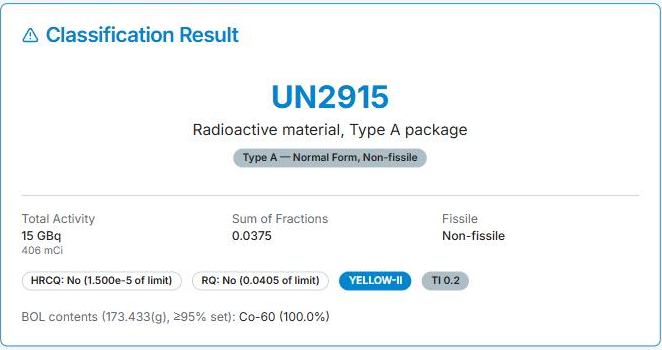
The headline: UN number, proper shipping name, and the package category chip (e.g. "Type A — Normal Form, Non-fissile"). Below it:
- Total Activity — in SI with the customary unit alongside; if you entered decay dates, this is the decayed activity at ship date
- Sum of Fractions — the A1/A2 fraction that drove the Type A/B determination
- Fissile status
- HRCQ and RQ — each shown with its margin against the limit (e.g. "RQ: No (0.0401 of limit)"), so you can see how close the package sits, not just the verdict
- Label category and TI chips — when survey readings were entered
- BOL contents line — the nuclides making up ≥95% of total activity, listed per 173.433(g), exactly as they'll print on the paper
Your Inputs
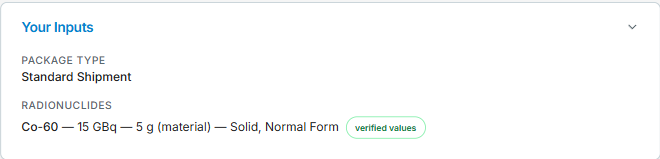
The exact inputs that were classified, with a verified values badge confirming the regulatory data behind them.
Transport Requirements — Labels, Markings & Placards
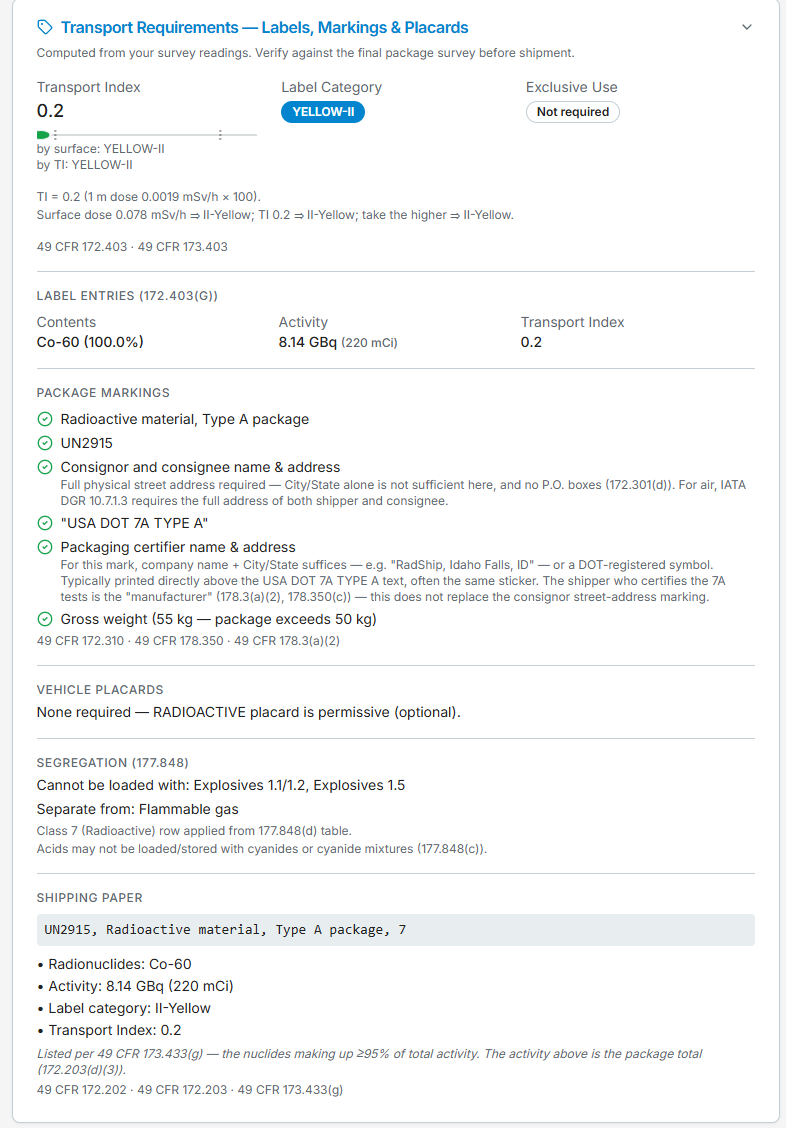
Computed from your survey readings (shown only when you entered them). This card is the package's complete transport picture:
- Transport Index — with the arithmetic shown ("TI = 0.2 (1 m dose 0.0019 mSv/h × 100)")
- Label category — determined both by surface dose and by TI, with the take-the-higher logic spelled out
- Exclusive use — required or not at your dose rates
- Label Entries (172.403(g)) — contents, activity, and TI exactly as they must be written on the label
- Package Markings — everything the package must carry (proper shipping name, UN number, consignor/consignee addressing requirements, the "USA DOT 7A TYPE A" mark and packaging-certifier guidance), each with its citation
- Vehicle Placards — required, or noted as permissive when optional
- Segregation (177.848) — what the package cannot be loaded with
- Shipping Paper — a preview of the basic description line ("UN2915, Radioactive material, Type A package, 7") plus the required Class 7 entries: nuclides, activity, label category, and TI
Packaging Hierarchy
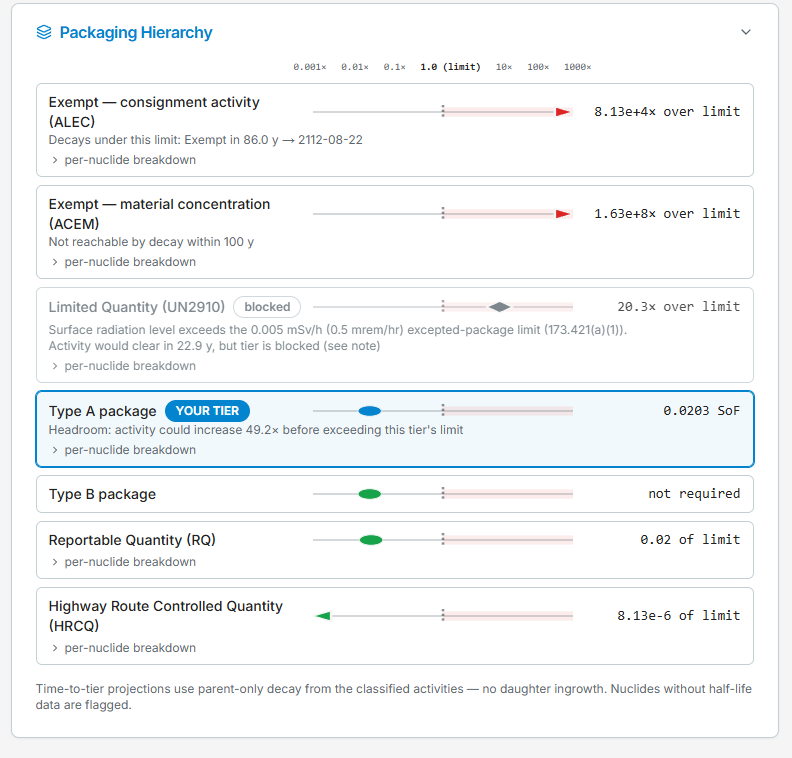
The full ladder of package tiers with your material placed on it — a YOUR TIER chip marks where the classification landed. Every rung shows how far the package sits from that tier's limit (e.g. "20.3× over limit", "0.02 of limit"), with headroom on your own tier ("activity could increase 49.2× before exceeding this tier's limit"). Tiers you can't use say why — e.g. Limited Quantity blocked because the surface radiation level exceeds the excepted-package limit — and time-to-tier projections show when decay would bring the package under a lower tier's limit. Expand per-nuclide breakdown on any rung to see each nuclide's contribution.
Decay Projection — Type A SoF vs Time
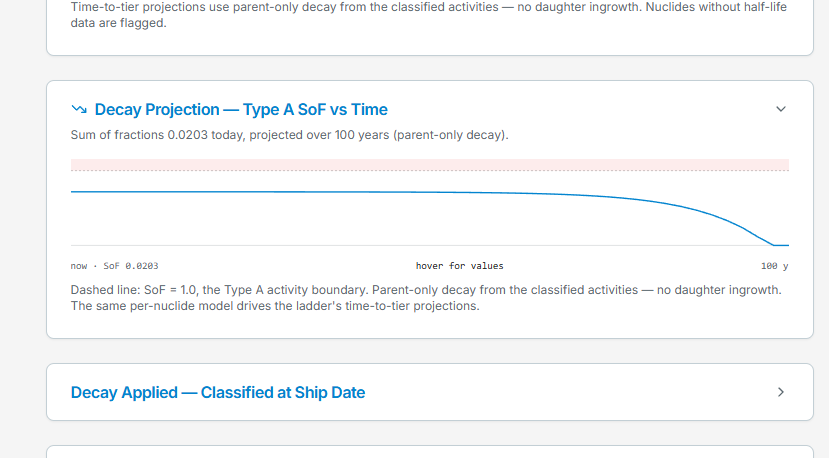
The Type A sum-of-fractions charted over 100 years (parent-only decay), with the SoF = 1.0 Type A boundary drawn as a dashed line — hover for values. Useful for seeing when a package near a boundary will decay across it; the same per-nuclide model drives the hierarchy ladder's time-to-tier projections.
Decay Applied — Classified at Ship Date
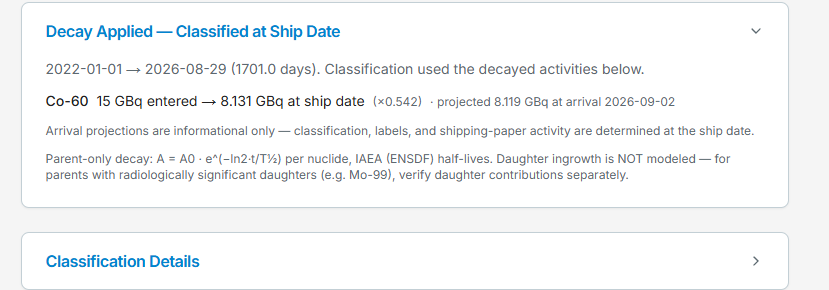
When you entered decay dates: the date span and elapsed days, then per nuclide the entered activity → the decayed activity used for classification, with the decay factor — plus the informational arrival projection if you gave an arrival date. The card states the model plainly: parent-only decay with IAEA (ENSDF) half-lives — for parents with radiologically significant daughters (e.g. Mo-99), verify daughter contributions separately.
Classification Details
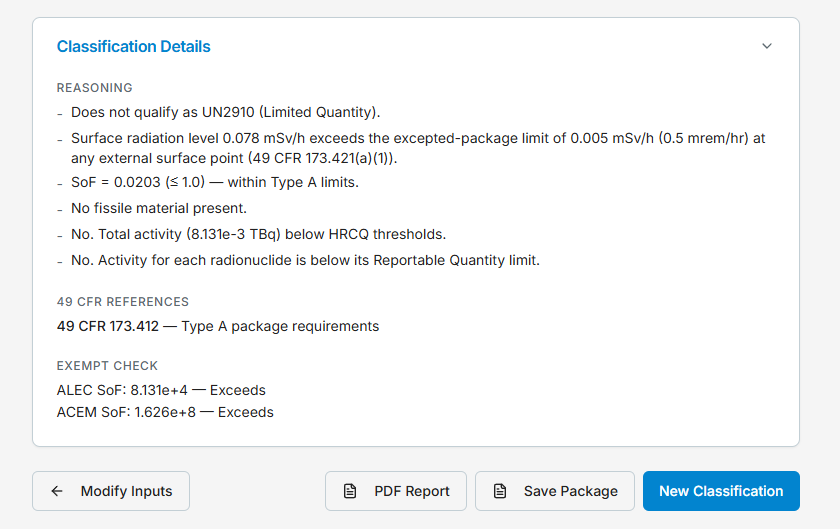
The full reasoning trail — every step of the elimination tree the engine walked and why each branch was taken or rejected (e.g. why Limited Quantity didn't qualify, the SoF against the Type A limit, the fissile and HRCQ/RQ determinations), followed by the governing 49 CFR references and the exempt check values (ALEC/ACEM sums of fractions). This is where you verify the classification against the regulation, determination by determination.
Actions and Provenance
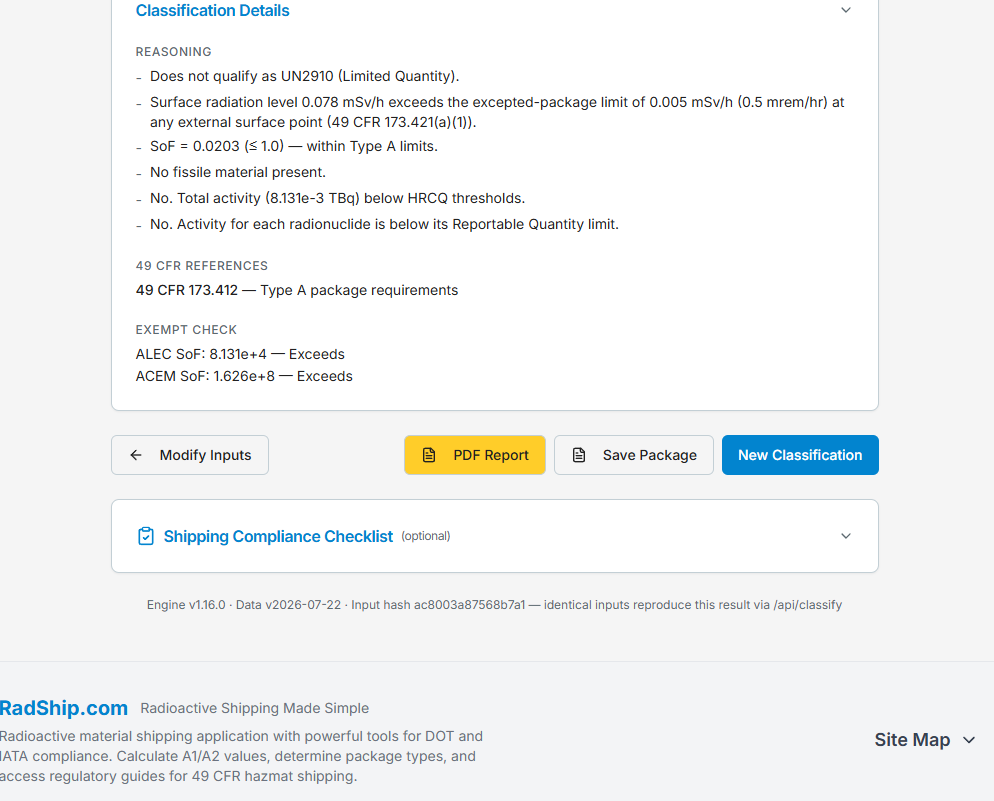
At the bottom of the results page:
- Modify Inputs — back into the wizard with everything preserved
- PDF Report — the Compliance Report (below)
- Save Package — see Step 6
- New Classification — start clean
- Shipping Compliance Checklist (optional) — a step-by-step checklist generated for this classification
The footer stamps the engine version, data version, and input hash — identical inputs reproduce this exact result, so any classification can be re-derived and audited later.
The PDF Compliance Report
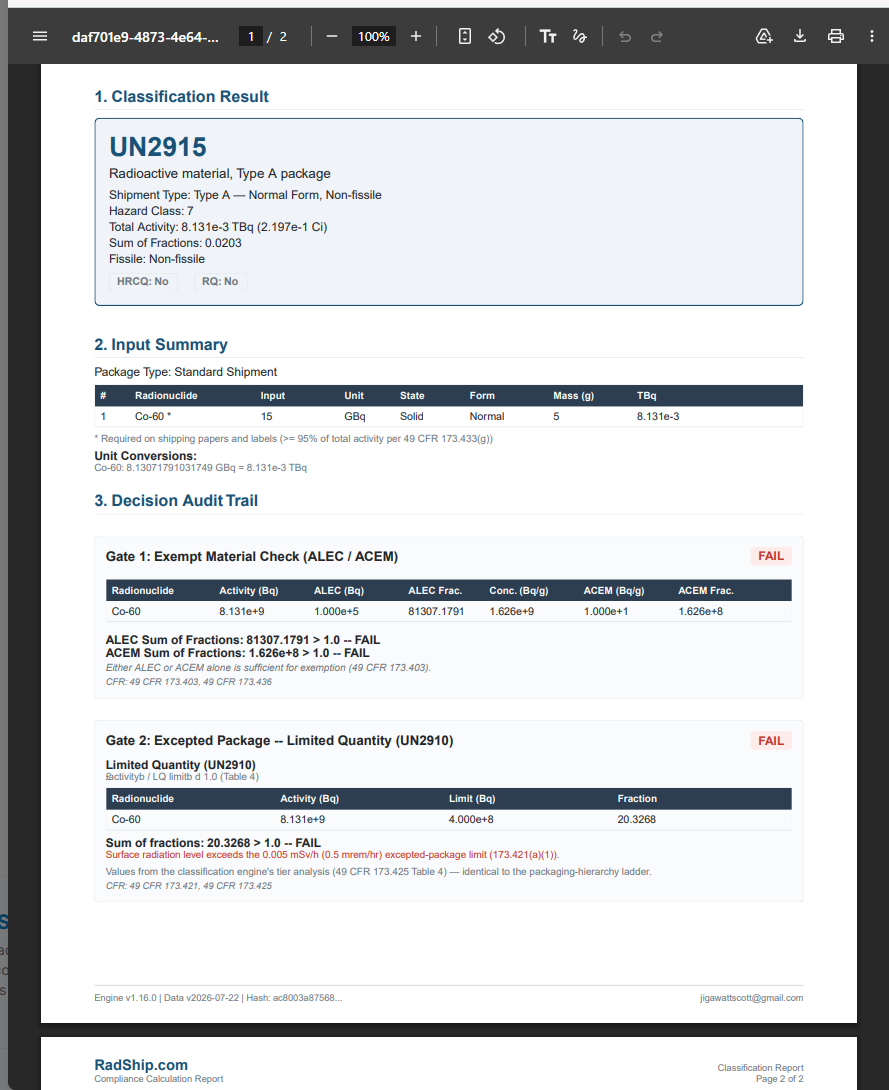
PDF Report generates the file-ready record of the classification:
- Classification Result — UN number, proper shipping name, shipment type, hazard class, total activity, sum of fractions, fissile status, and the HRCQ/RQ verdicts
- Input Summary — every radionuclide as entered, with unit conversions shown and the shipping-paper nuclides (≥95% of total activity per 173.433(g)) marked
- Decision Audit Trail — every gate the engine evaluated with the actual numbers and a PASS/FAIL verdict: the exempt check with per-nuclide ALEC/ACEM fractions, the excepted-package check with the Table 4 limits and sum of fractions, and so on down the tree, each gate citing its 49 CFR sections
Each page is stamped with the engine version, data version, input hash, and the generating account — the report is a self-contained, auditable record for your shipment file.
Step 6: Save the Package
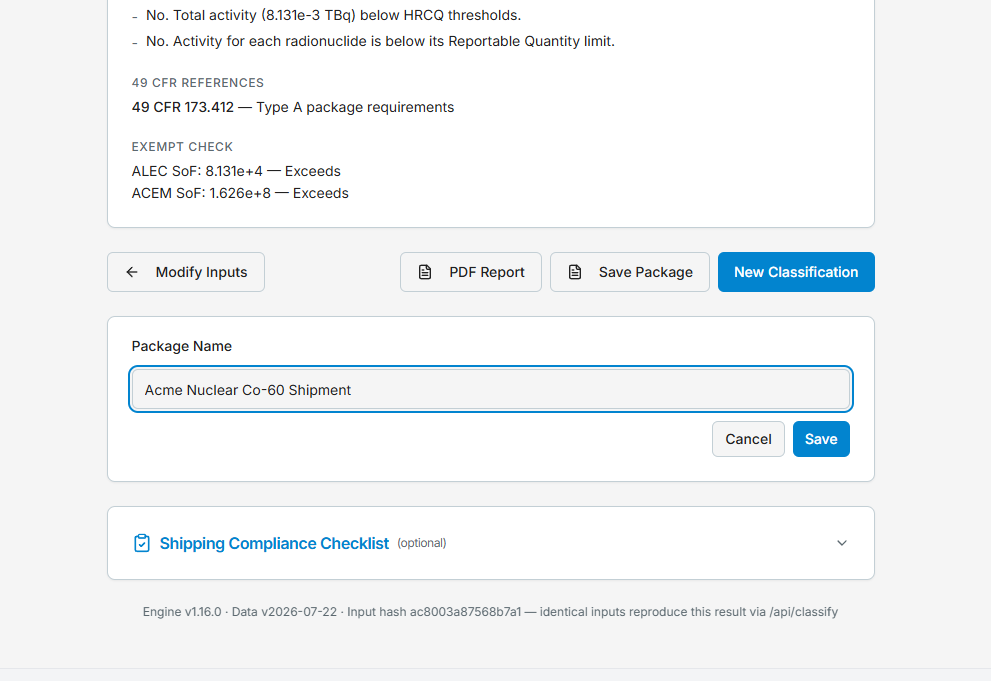
Click Save Package, give it a name you'll recognize later (e.g. "Acme Nuclear Co-60 Shipment"), and Save. Saved packages appear under My Packages and are the building blocks of consignments. When you load a saved package and re-classify it in the same transport mode, you can Update it in place or Save as New. Every save is re-verified by the engine on the server — the stored classification always matches the stored inputs.
Everything determined here carries through: the label category, TI, and decayed activities stored with the package flow into the consignment and print on the BOL or DGD. And if you classified before the final package survey existed, you can come back — load the package, add the readings, re-classify, and Update — so the classification of record matches the as-surveyed package.
My Packages
Every classification you save becomes a package record — inputs, results, and the engine version that produced them.
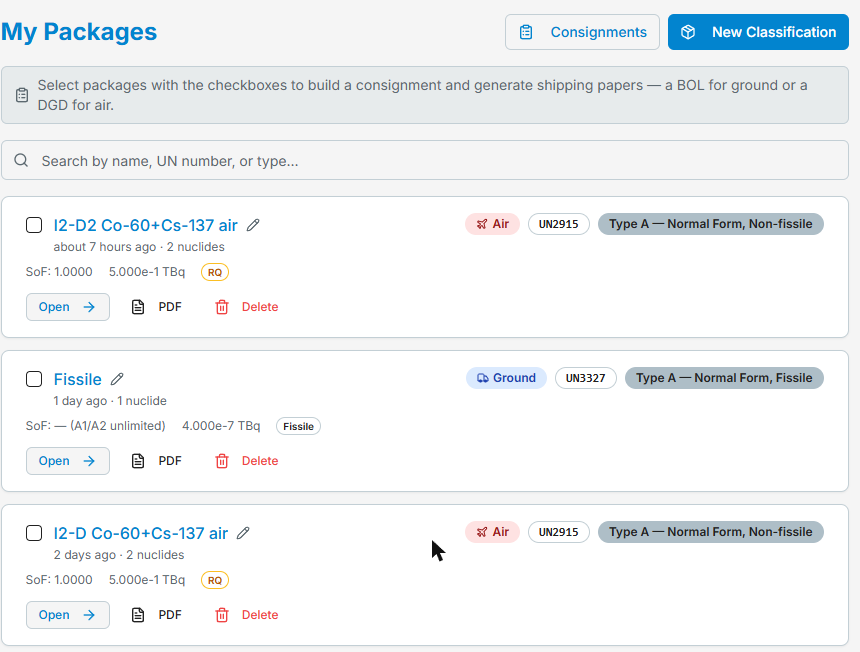
- Open a package to load it back into the classifier and review or re-run its classification.
- Rename a package inline from the list (pencil icon), or delete ones you no longer need.
- Edit by loading it, changing inputs, and re-classifying — then Update in place (same transport mode) or Save as New. Re-running a package in the other mode (ground ↔ air) always saves a second record so both versions are kept distinct.
- Compliance Report — preview and download the classification PDF directly from the package card.
- Create a consignment — select one or more packages and click Create Consignment to start the shipping papers (BOL for ground packages, DGD for air).
- Reuse packages across consignments — a recurring shipment is a saved package added to a new consignment each time.
From Classification to Shipping Papers
Shipping papers are generated from a consignment — one or more saved packages assembled into a shipment with shipper, consignee, carrier, and emergency contact information. Ground consignments produce a Bill of Lading (BOL); air consignments produce a Dangerous Goods Declaration (DGD).
Step 1: Start the Consignment
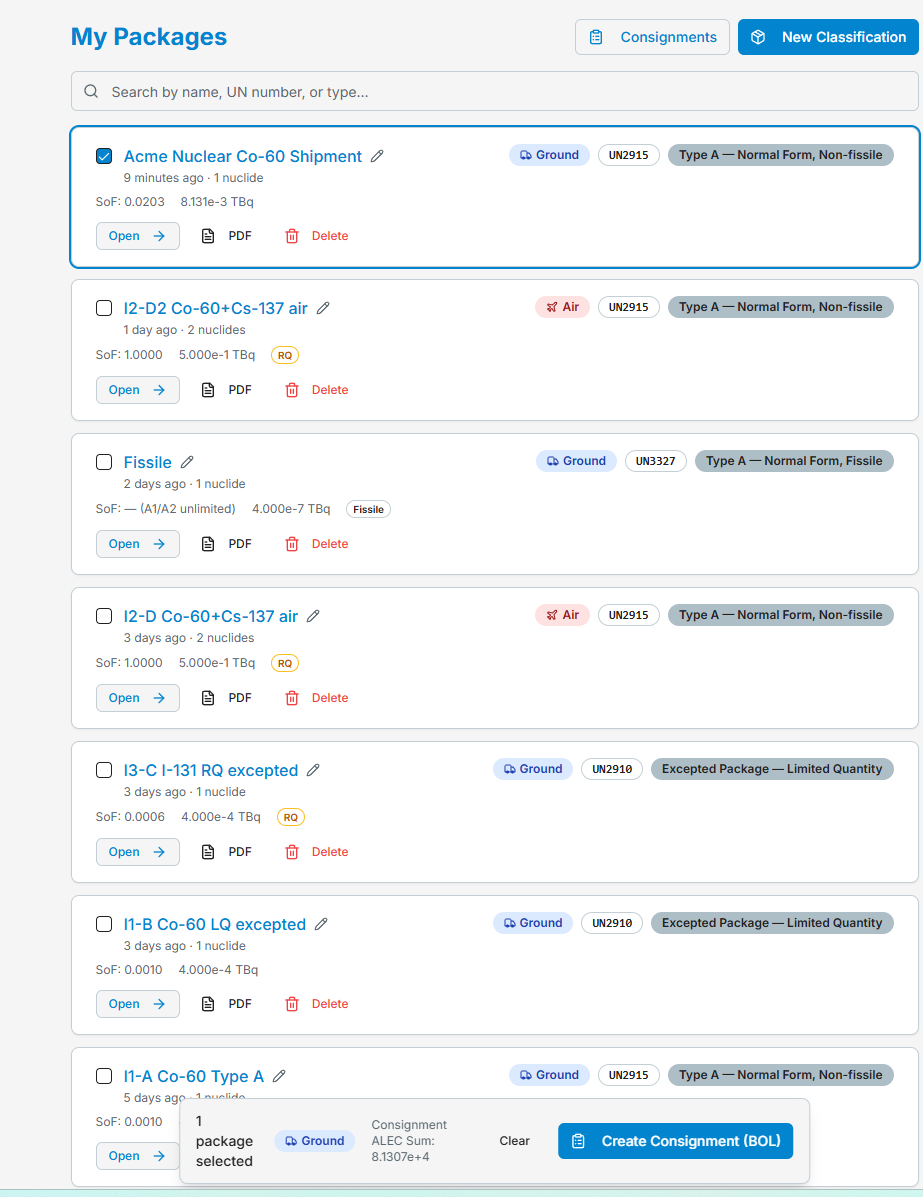
From My Packages, tick the checkbox on the package(s) you're shipping and click Create Consignment — ground packages start a BOL, air packages a DGD. The selection bar keeps a running Consignment ALEC sum, the aggregate exempt-consignment check across everything you've selected. You can also start from My Consignments → Select Packages.
A consignment is one transport mode. The mode came from the classification and is locked on the form — to ship the same material by air, re-run the classifier in Air mode (saving creates a separate Air record), then build the DGD from that package.
Step 2: Complete Each Package's Shipment Details
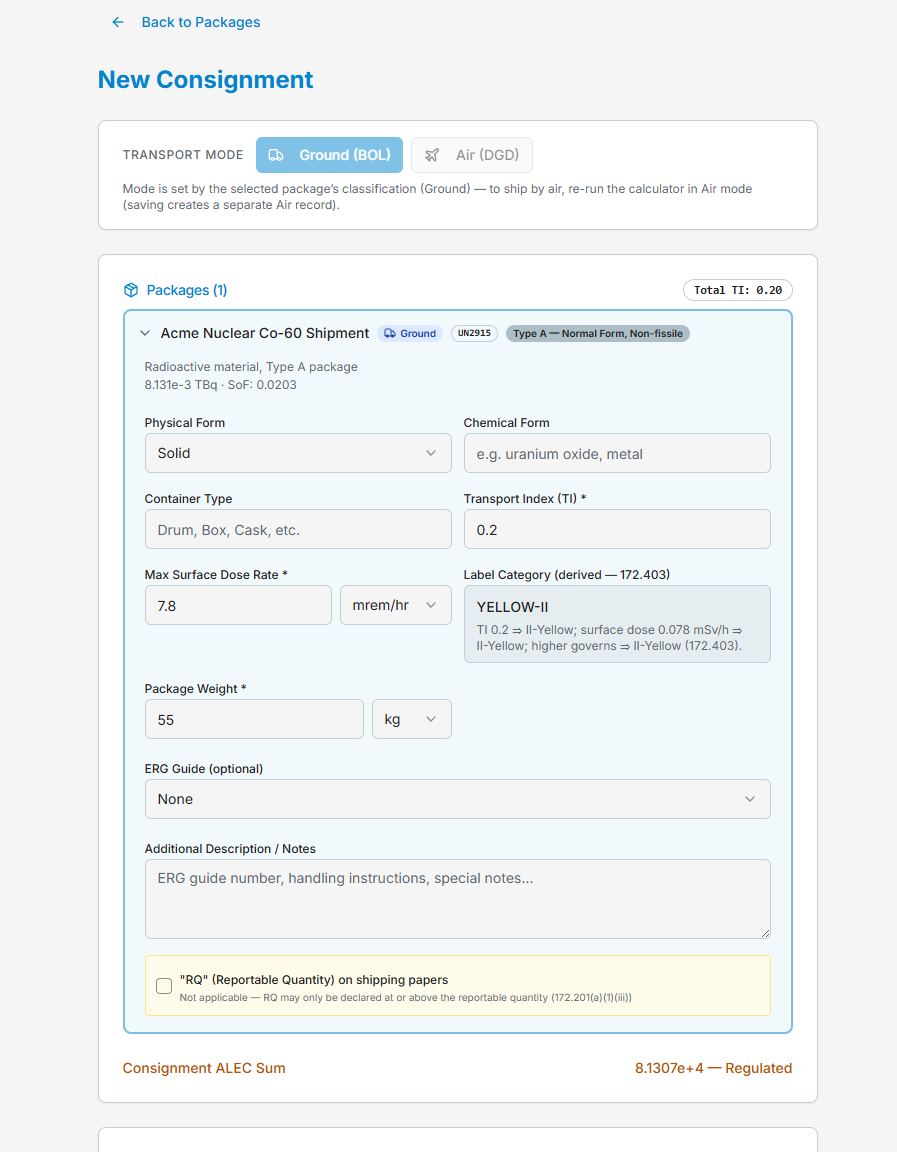
The consignment carries each package's verified classification with it — UN number, proper shipping name, category — and asks for the shipment-specific facts the paper needs. Per package:
- Physical form and chemical form — e.g. Solid / "uranium oxide, metal". Chemical form is required before an air DGD can be saved.
- Container type — Drum, Box, Cask, etc.
- Package weight (required) — feeds the per-line weights and the BOL totals row.
- Survey values — max surface dose rate and Transport Index; if you classified with survey readings, they carry over. The label category is derived per 172.403 from what you declare here, with the take-the-higher logic shown (and an override-plus-reason path if the packaging-time survey differs).
- Certificates, where the classification requires them — the package identification marking from the approval certificate (e.g. USA/1234/B(U)-96) for Type B, the special-form certificate ID (e.g. USA/0335/S-96), and the Criticality Safety Index for fissile packages.
- ERG Guide (optional, regulated packages) — pick the guide number and it prints with the description on the BOL and in the DGD's additional handling information.
- Additional description / notes — extra text that rides the paper's description column.
- RQ status is locked to the engine's verdict — below the reportable quantity the checkbox is disabled ("RQ may only be declared at or above the reportable quantity, 172.201(a)(1)(iii)"); at or above it, RQ always prints.
Below the packages, the form shows the consignment-level ALEC sum and whether the consignment is regulated.
Step 3: The Parties
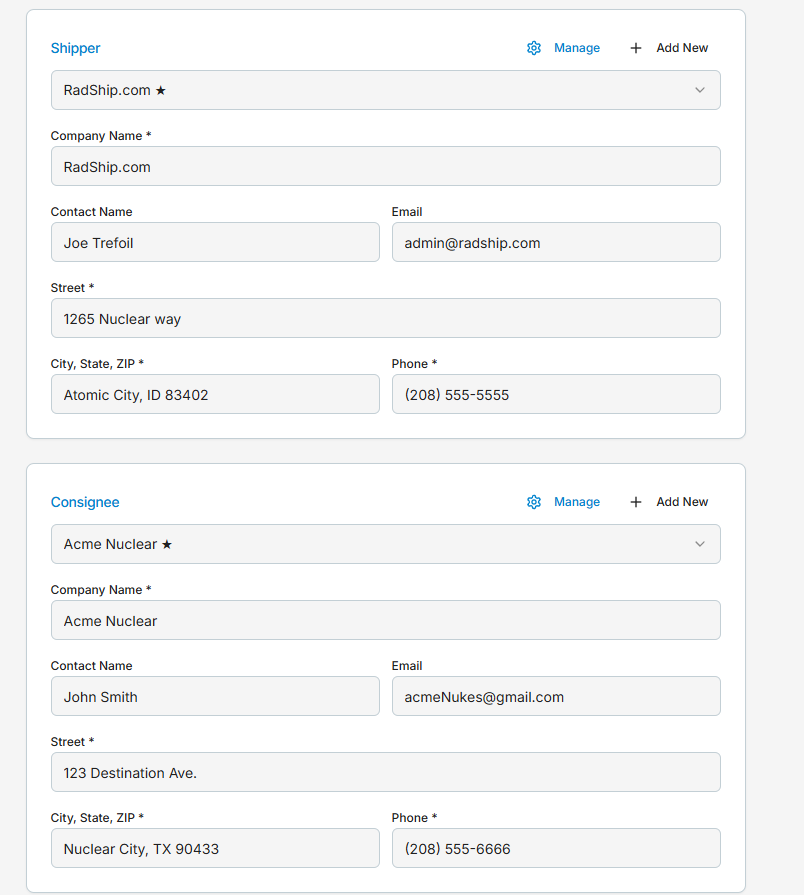
- Shipper and Consignee — select a saved address (your default is starred) or enter one manually; Manage / Add New maintains the list right from the form. Use full physical street addresses — City/State alone is not sufficient on the markings, and no P.O. boxes.
- Emergency Contact — the DOT-required 24-hour number. Provider name and phone are required (e.g. CHEMTREC); add the contract number for an emergency-response contractor — the form will remind you if it's missing.
All of these prefill from your saved Shipment Settings — set your defaults once and every new consignment starts filled in.
Step 4: Shipment Details
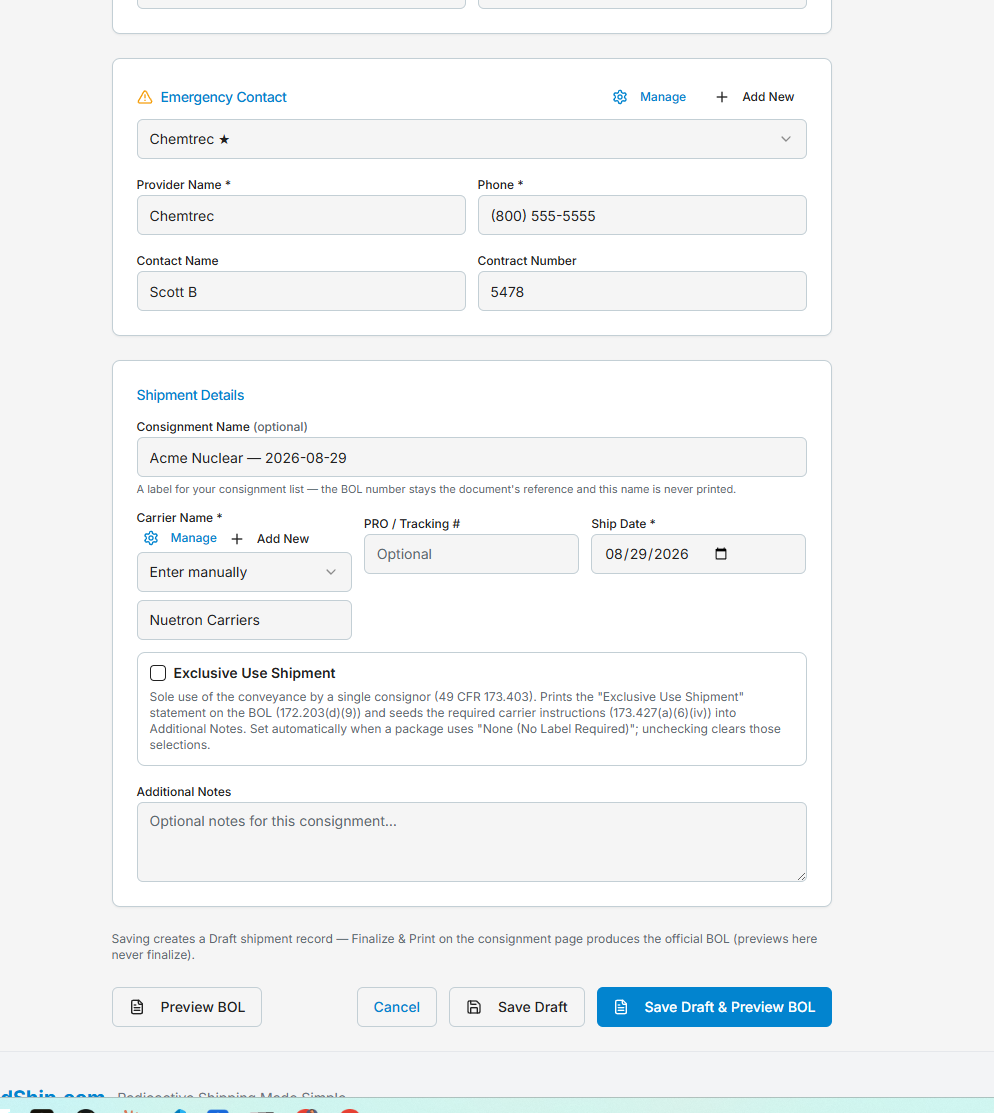
- Consignment name (optional) — a suggested name is offered. It's a label for your list only; the automatically-assigned BOL number stays the document's reference and the name is never printed.
- Carrier (required) — your default saved carrier is selected automatically, or enter one manually; PRO/tracking number is optional.
- Ship date (required).
- Exclusive use — sole use of the conveyance by a single consignor (49 CFR 173.403). Declaring it prints the "Exclusive Use Shipment" statement on the BOL (172.203(d)(9)) and seeds the required carrier instructions (173.427(a)(6)(iv)) into the notes; it's set automatically when a package relies on "None (No Label Required)".
- Additional notes — consignment-level notes for the paper.
Air Shipments — the DGD Differences
An air consignment adds the Air Transport Details block:
- Aircraft type (required) — passenger or cargo; cargo-only shipments print the CAO designation
- Package dimensions (required) — e.g. "30 x 30 x 30 cm"
- Air Waybill # — optional at creation; carriers like FedEx assign it at tender
- Airports of departure and destination
- Signatory name — must be a person (a company name alone is not accepted on the declaration); defaults to the shipper contact
Two air requirements are enforced as hard gates before the DGD can be saved: chemical form on every package and a person as signatory. The DGD renders on the standard declaration form with air-specific rules applied — ground-only reliefs are never offered by air, and multi-nuclide packages list the activity of each radionuclide as the DGR requires.
Step 5: Preview, Save, and the Consignment Page
Preview BOL shows the exact paper at any time — previews never finalize anything, and an unsaved draft prints "DRAFT — not yet saved" where the BOL number will go. Save Draft creates the shipment record and lands you on the consignment page.
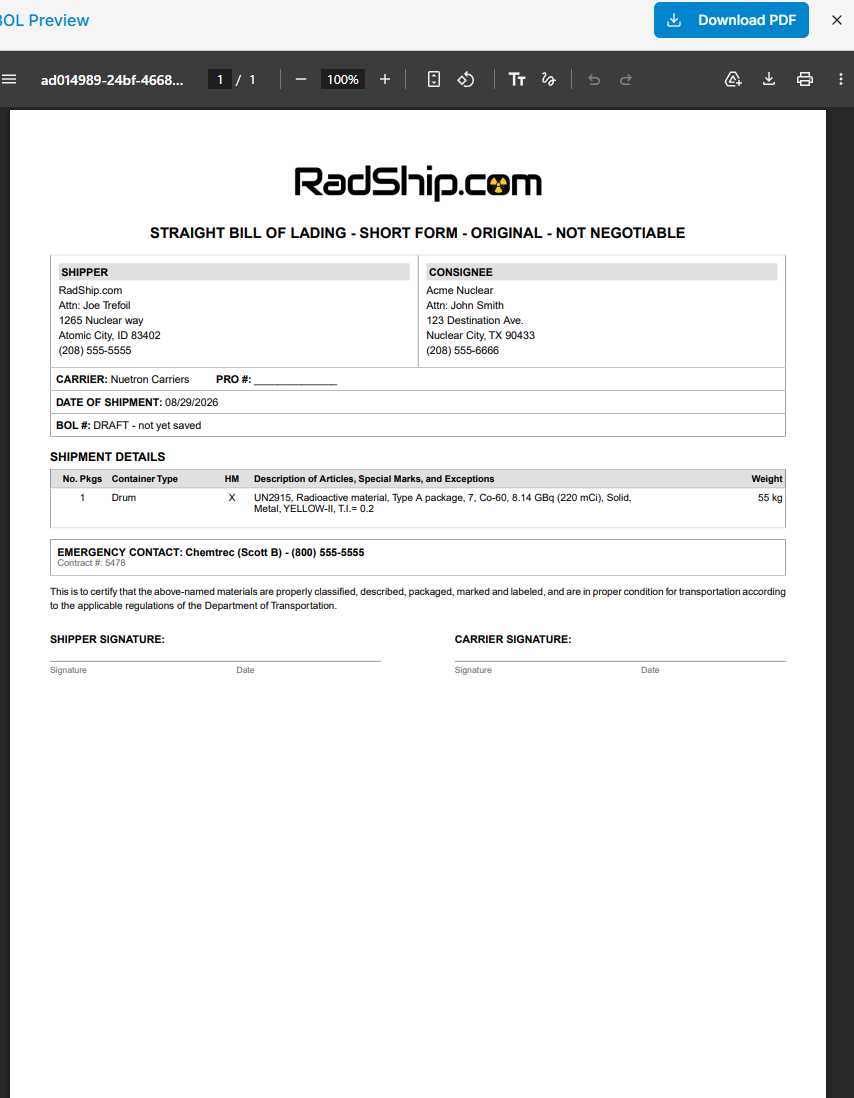
The BOL prints everything the regulation asks of the paper:
- Shipper and consignee blocks, carrier, PRO #, and ship date
- One line per package with the HM column ("X") and the full basic description per 49 CFR 172.202/172.203 — e.g. "UN2915, Radioactive material, Type A package, 7, Co-60, 8.14 GBq (220 mCi), Solid, Metal, YELLOW-II, T.I.= 0.2" — with RQ where the classification requires it and your ERG note in the description
- Per-line weights and a totals row (multi-package consignments)
- The emergency contact with contract number
- The shipper's certification statement and signature blocks
Draft → Final → Shipped
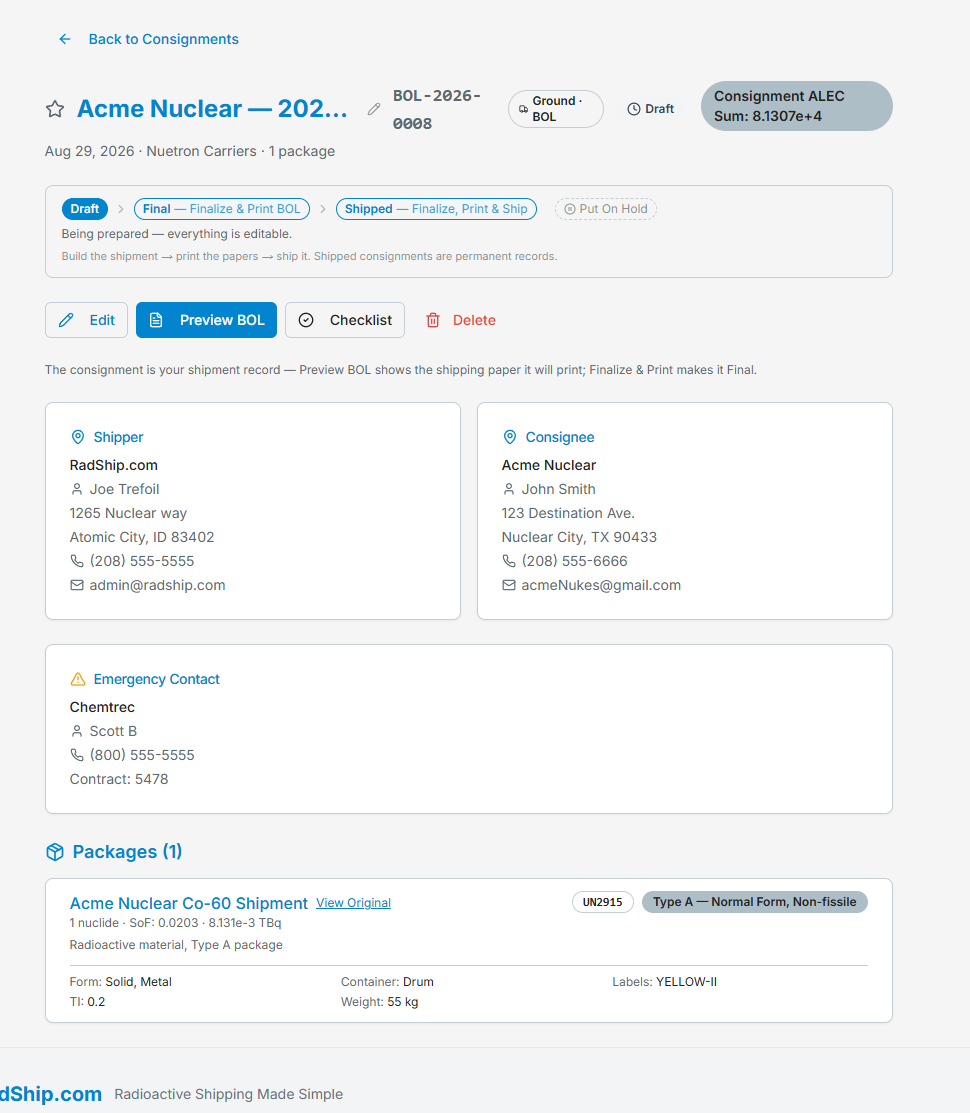
The consignment page is your shipment record. The lifecycle stepper at the top walks Draft (everything editable) → Final — Finalize & Print BOL (produces the official numbered paper) → Shipped (a permanent record), with Put On Hold available for shipments that stall. From here you can Edit, Preview BOL, or open the Checklist — a step-by-step shipping compliance checklist for this consignment. Completeness advisories flag anything the paper still needs (a missing chemical form, the emergency-response contract number) before you finalize — problems surface here, not at the loading dock.
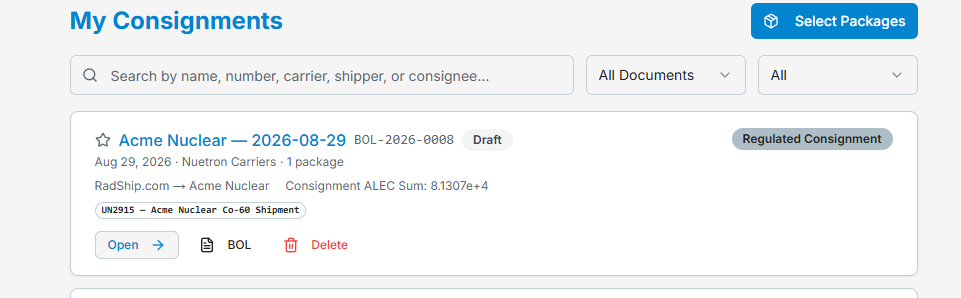
My Consignments lists every shipment with its BOL number, status, carrier, and parties — searchable by name, number, carrier, shipper, or consignee. Shipped consignments are your audit trail: reprints reproduce the paper as generated.
Multi-Package Consignments
A ground consignment can carry multiple packages; the BOL prints one line per package with a totals row (package count and total weight).
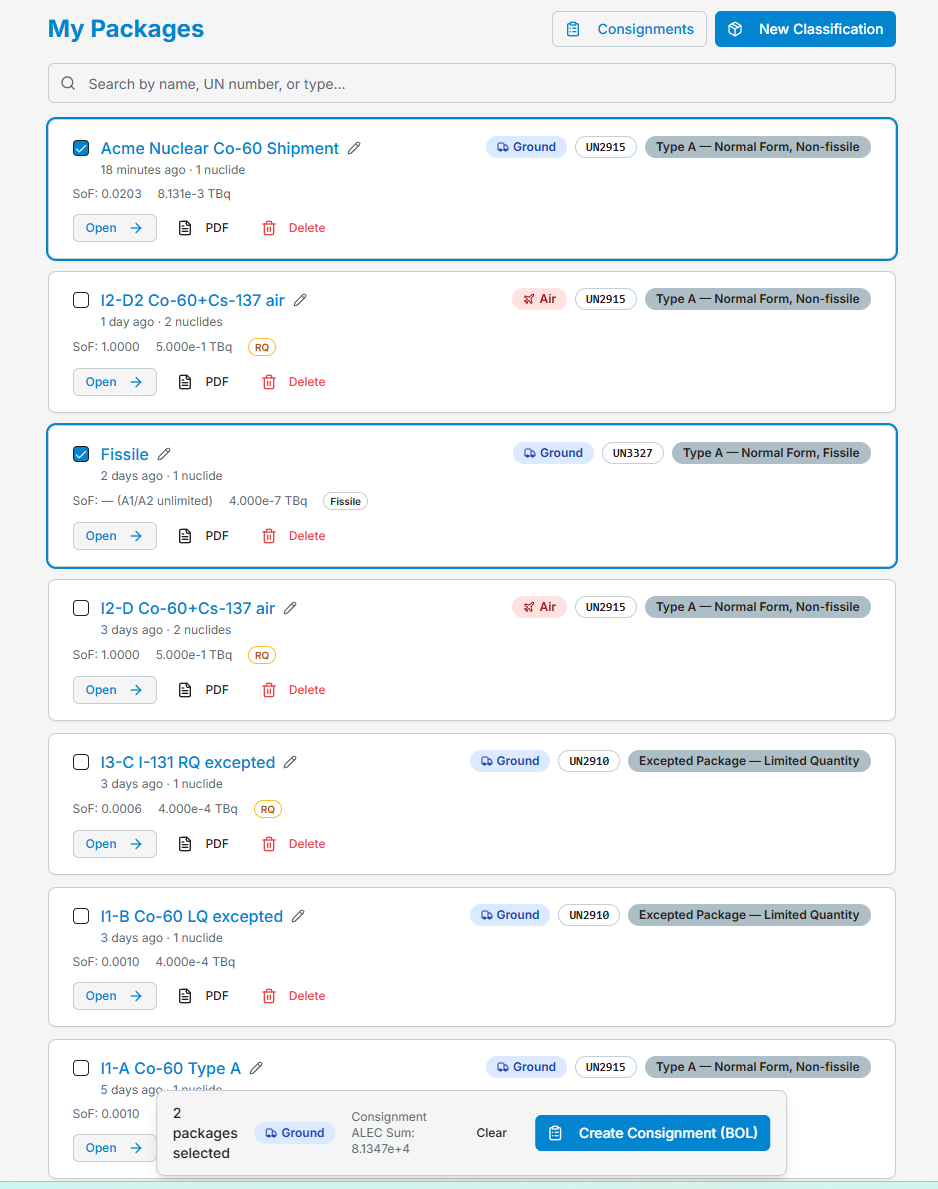
- Tick each package on My Packages — the selection bar counts them and keeps a running Consignment ALEC sum, the aggregate exempt-consignment check across the set. Packages must share a transport mode (ground with ground, air with air); mixed types are fine — a Type A fissile package and a standard Type A can ride the same BOL.
- The consignment evaluates the packages together — aggregate limits are checked across the set, and a package whose classification changes in context is re-classified by the engine before the paper prints.
- Per-package details (container type, weight, additional description) are edited on the consignment itself.
- Air consignments carry one package per DGD — ship multiple air packages as separate consignments.
Shipment Settings: Save Time on Every Shipment
The Shipment Settings page lets you save frequently-used addresses, emergency contacts, and carriers, and manage your BOL branding. This information auto-populates when generating BOL and DGD documents, saving you time and reducing errors.
Accessing Shipment Settings
Click Manage Settings on the Shipment Settings card of your Dashboard, or select it from your account menu in the top right corner.
BOL Logo
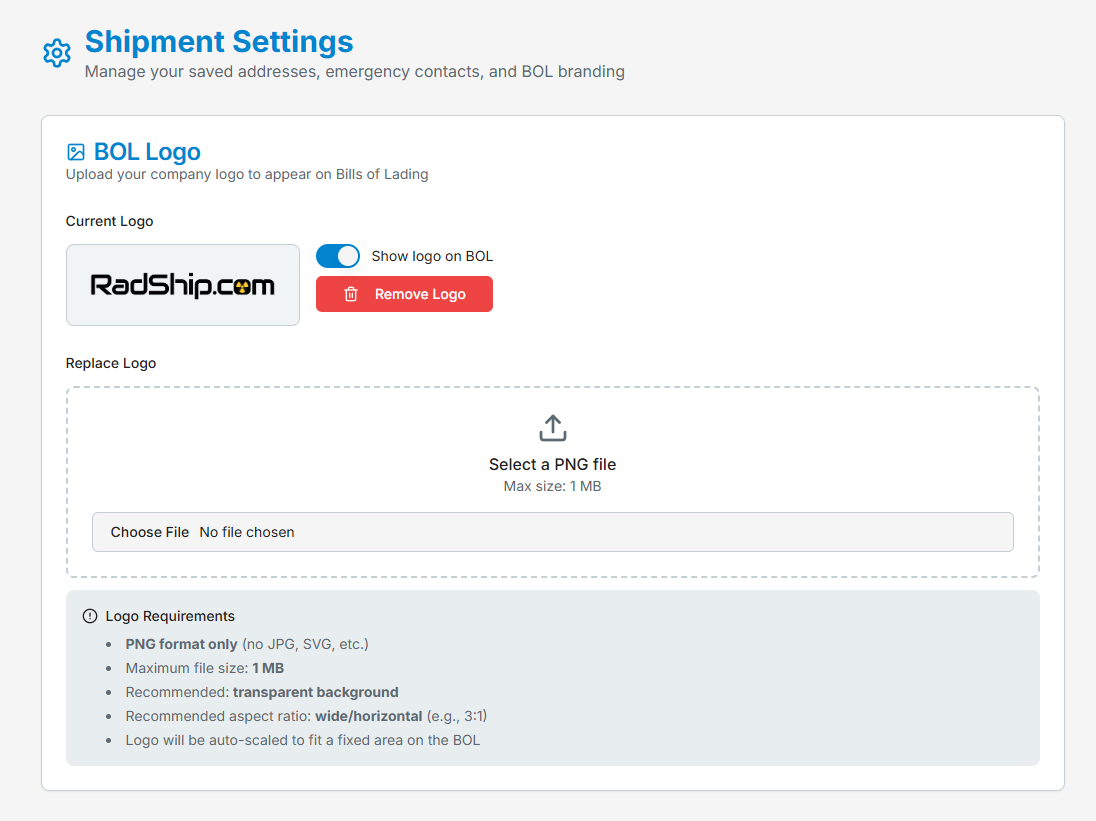
Upload your company logo and it prints at the top of your Bills of Lading — your paper, your letterhead. Requirements: PNG only, max 1 MB, transparent background recommended, wide/horizontal aspect (about 3:1) works best; the logo auto-scales to a fixed area on the BOL. The Show logo on BOL toggle turns it on and off without deleting the upload.
Saving Shipper Addresses
Your shipper address is the "from" address on shipping documents. To save a shipper address:
- Click Add Shipper Address
- Enter the company name and full address
- Add contact name and phone number
- Optionally mark as your default shipper address
- Click Save
You can save multiple shipper addresses if you ship from different facilities.
Saving Consignee Addresses
Consignee addresses are your recipients. To save:
- Click Add Consignee Address
- Enter the recipient's company name and full address
- Add contact information
- Click Save
Save addresses for all your regular delivery destinations.
Managing Emergency Contacts
DOT requires 24-hour emergency contact information on radioactive shipments. To add an emergency contact:
- Click Add Emergency Contact
- Enter the contact name
- Add the 24-hour phone number
- If using an emergency response contractor, enter their provider name and contract number
- Click Save
Saving Carriers
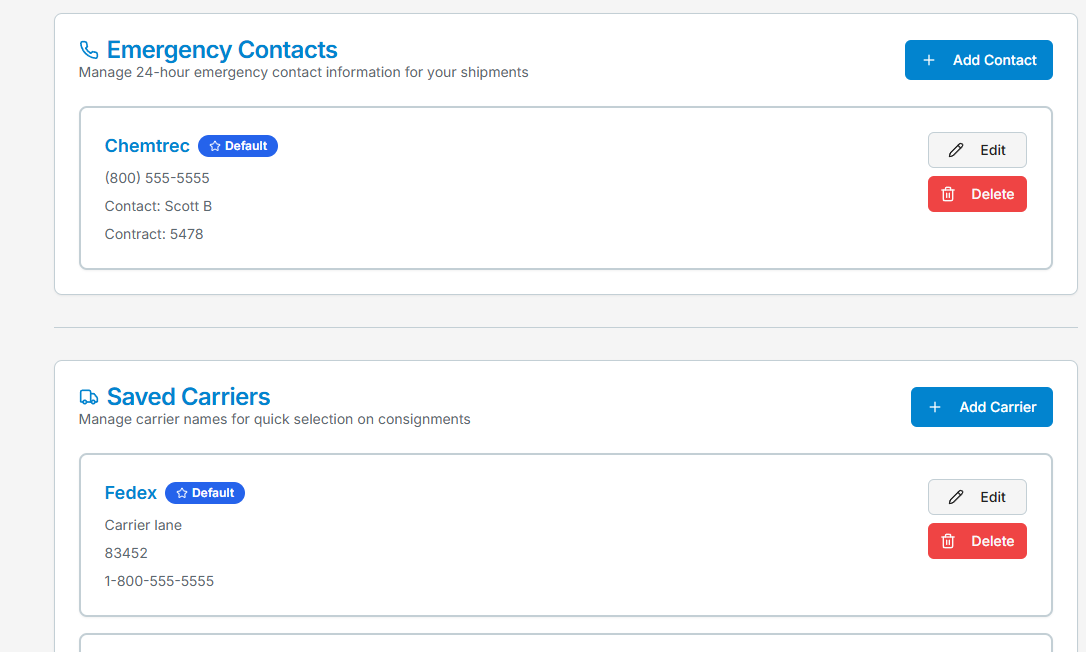
Carrier records save the carrier name plus optional address and phone details, which feed the carrier block on your shipping papers:
- Click Add Carrier
- Enter the carrier name, and optionally its address and phone
- Mark your most-used carrier as the default — it prefills the carrier field on every new consignment (just like the default emergency contact)
- Click Save
Using Saved Information
When generating a BOL or DGD, you'll see dropdowns to select from your saved:
- Shipper addresses
- Consignee addresses
- Emergency contacts
- Carriers
Select an entry and the form auto-populates instantly.
Editing and Deleting Saved Information
From Shipment Settings, you can:
- Edit - Click the edit icon to update any saved address or contact
- Delete - Click the delete icon to remove entries you no longer need
- Set Default - Mark your most-used entries as defaults for faster selection
Keep your saved information up to date for accurate shipping documents.
Understanding Mass Entry in the Calculator
The calculator offers two ways to enter radionuclide data, depending on how your material is characterized. Understanding which to use ensures accurate classification.
Method 1: Individual Masses (Default - Most Common)
When to use: You know the mass or activity of each radionuclide separately
How it works:
Enter mass (or activity) for each radionuclide in its own row
Each radionuclide has its own "Mass" field
Calculator uses individual masses for concentration calculations
For fissile materials: Calculator sums masses and calculates enrichment from isotopic composition
Example - Contaminated Equipment:
Radionuclide 1: Cs-137, Mass: 0.5g, Activity: 50 mCi
Radionuclide 2: Sr-90,  Mass: 0.3g, Activity: 30 mCi
Radionuclide 3: Co-60,  Mass: 0.1g, Activity: 80 mCi

Each radionuclide's concentration calculated separately:
Cs-137: 50 mCi / 0.5g = concentration
Sr-90:  30 mCi / 0.3g = concentration
Use this method when:
✅ Material certificate lists each isotope separately
✅ Sealed sources with known isotopic content
✅ Separated/pure isotopes
✅ You have gamma spectroscopy results
✅ Fissile materials requiring enrichment calculation (U-235 + U-238)
Method 2: Mixture Mode
When to use: All radionuclides are uniformly mixed in a single bulk material and you know the TOTAL mass but not individual isotope masses
How to enable:
Check ✓ "All radionuclides are in a single mixture"
Enter "Total Mixture Mass (g)"
Enter activity for each radionuclide (masses become optional)
How it works:
Uses the TOTAL mixture mass for ALL radionuclides' concentration calculations
Helpful for ACEM (Activity Concentration for Exempt Material) evaluation
Each radionuclide's concentration = Activity / Total Mixture Mass
Example - Contaminated Soil:
Total soil mass: 1000g (known from weighing)
☑ "All radionuclides are in a single mixture"
Total Mixture Mass: 1000g

Radionuclide 1: Cs-137, Activity: 10 mCi (mass optional)
Radionuclide 2: Sr-90,  Activity: 5 mCi  (mass optional)
Radionuclide 3: U-238,  Activity: 0.1 mCi (mass optional)

All use same 1000g for concentration:
Cs-137: 10 mCi / 1000g = concentration
Sr-90:  5 mCi / 1000g  = concentration
Use mixture mode when:
✅ Contaminated soil (know total soil mass, not individual isotope masses)
✅ Sludge, ash, or bulk waste (homogeneous mixture)
✅ Environmental samples
✅ You have activity measurements but not mass breakdown
✅ Material is solidified/stabilized as a uniform matrix
⚠️ Mixture coherence rule: a mixture is ONE homogeneous material, so every row must share one physical state, and every row must be Normal Form — a special form source (§ 173.469) is a discrete sealed source that is never part of a homogeneous mixture. The calculator blocks incoherent combinations because the shared mixture mass feeds each nuclide's concentration denominator: a sealed capsule or a different-state row would borrow dilution credit from mass it is not actually part of. (LSA classifications handle physical state through their own material profiles, which carry their own state rules.)
Key Differences
Aspect Individual Masses Mixture Mode Mass Entry Each radionuclide has its own mass One total mass for all radionuclides Concentration Calc Activity/Mass per isotope Activity/Total Mixture Mass for all Fissile Enrichment Auto-calculates from U-235/U-238 masses Cannot calculate (no individual masses) Use Case Known isotopic composition Homogeneous bulk material ACEM Check Each isotope needs mass entered Uses total mixture mass for all
⚠️ Important for Fissile Materials
If you have fissile uranium (U-233, U-235):
❌ Do NOT use mixture mode if you need enrichment-based exceptions § 173.453(d) or (e)
✅ Use individual masses for U-235 and U-238 so calculator can determine enrichment
✅ You can still enter solid non-fissile mass separately in the Fissile Package Information section
Example: Low-enriched uranium in contaminated soil:
U-238: 990g (enter as radionuclide)
U-235: 10g (enter as radionuclide)
Calculator calculates: 1.0% enrichment → qualifies for § 173.453(d)
If soil is also contaminated with Cs-137, enter Cs-137 as additional radionuclide
Still Confused? Quick Decision Guide
Choose Individual Masses if:
Your certificate lists each isotope's mass
You have multiple sealed sources
Material has fissile isotopes (U-235, Pu-239, etc.)
You need enrichment calculations
Choose Mixture Mode if:
You weighed the total bulk material (soil, sludge, etc.)
Radionuclides are uniformly distributed throughout
You have activity measurements but not individual masses
Checking ACEM (Exempt Material) concentration limits
When in doubt: Use individual masses - it's more precise and works for all calculations including fissile exceptions.
📖 Reference: 49 CFR § 173.433 (Exempt Consignment and Material requirements)
📊 Impact on LSA/SCO Classification
LSA (Low Specific Activity) classification is based on: Activity ÷ Mass = Specific Activity (Bq/g)
How Your Mass Entry Affects LSA:
🔹 Individual Masses Method: Calculator uses each isotope's own mass
Example: Activated metal parts
Cs-137: 50 mCi activity, 0.5g mass → SA = 100 mCi/g
Co-60:  80 mCi activity, 0.1g mass → SA = 800 mCi/g

Each isotope evaluated separately for LSA limits
🔹 Mixture Mode: Calculator uses total mixture mass for ALL isotopes
Example: Contaminated soil (10 kg total)
☑ Mixture mode, Total Mass: 10,000g
Cs-137: 50 mCi }
Sr-90:  30 mCi } Combined: 160 mCi total activity

Average SA = 160 mCi ÷ 10,000g = 0.016 mCi/g
All isotopes use this same 10kg mass for SA calculation
When to Use Each Method for LSA:
✅ Use MIXTURE MODE for:
- Contaminated soil: Radionuclides spread throughout dirt/sand
- Concrete rubble: Activation products distributed in concrete
- Liquid waste/sludge: Homogeneous liquid or slurry
- Ash or slag: Radionuclides uniformly mixed
Why: You know the total bulk mass (weighed the bag of soil) but not individual isotope masses
✅ Use INDIVIDUAL MASSES for:
- Activated equipment: Metal parts, pipes, tools (each piece has mass)
- Sealed sources: Known isotope and mass from certificate
- Natural uranium: Select "U (nat)" with known mass
- Separated isotopes: Lab samples, purified materials
Why: Each radionuclide has a specific, measurable mass
The Four Masses — What Each One Does
The classifier can ask for up to four different masses. They are not interchangeable — each drives a different part of 49 CFR 173:
| Field | Where | What it drives |
|---|---|---|
| 1. Isotope mass / activity | Each nuclide row (grams, or activity converted via specific activity) | The activity math (A₁/A₂ fractions, exempt limits) and the fissile mass for the 173.453 gates — 2 g for (a), 15 g for (b), 180 g for (c) |
| 2. Total material mass | Each nuclide row ("material" mass) | The concentration denominator — activity ÷ material mass vs. the exempt concentration limit (ACEM, 173.436). Must be at least the isotope mass on the same row |
| 3. Total mixture mass | "This is a mixture" toggle | Replaces the per-row material masses with ONE shared bulk mass for homogeneous material (this page's main topic) |
| 4. Solid Nonfissile Mass | Fissile Material Details section | Only the 173.453 (b)/(c) dilution ratios — 200:1 and 2000:1. Separate from the masses above: it is the non-fissile solid AROUND the fissile material. For (b) it may include the packaging (PHMSA ref. 24-0124); for (c) only commingled material counts |
Example: 10 g of U-235 dispersed in 5 kg of contaminated soil, packed in a 20 kg drum: isotope mass = 10 g (row 1), material mass = 5,000 g (the soil the activity is measured against), and Solid Nonfissile Mass ≈ 4,990 g commingled soil for exception (c) — or up to ~24,990 g including the drum for exception (b).
💡 Classifying LSA material: choose "LSA Material" on the "What are you shipping?" step to run the LSA evaluation directly — or, if a standard classification qualifies for LSA, the results page shows a discovery card with a one-click switch into the LSA workflow (your entries carry over).
📖 Reference: 49 CFR § 173.403 - LSA Definition
Importing Nuclide Data (CSV, Paste, or File)
Instead of typing each radionuclide row, click Import on the Radionuclides step to bring in a whole list at once. The importer accepts:
- Pasted text — CSV, tab-separated, or freeform lines. Examples that
all parse:
Co-60, 3.7, GBq Cs-137 150 mCi Solid Normal Form Am-241,0.5,uCi - An uploaded file — .csv, .tsv, or .txt
The CSV Template
Click Download CSV Template in the import dialog for the exact column layout:
Nuclide,Activity,Unit,State,Form,Mass (g),Volume (L)- Nuclide — the symbol, e.g. Co-60, Cs-137 (matched against the radionuclide library; unknown names are flagged, never silently dropped)
- Activity + Unit — e.g. 3.7 GBq, 150 mCi
- State — Solid, Liquid, or Gas
- Form — Normal or Special Form
- Mass (g) / Volume (L) — optional, where your evaluation needs them (exempt-concentration and LSA math)
Review Before It Lands
The importer shows a parsed preview — what it recognized, and any rows it could not — before anything is added to your entry list. Fix or drop problem rows there, then confirm. After import, every row is a normal entry you can edit by hand, in card or table view.
Exporting
From table view you can Export CSV — the current entry list in the same template format, handy for reusing a nuclide list on a future shipment or sharing it with a colleague.
LabelCalc: Determine Your Shipping Labels
LabelCalc uses your dose rate measurements to determine the correct shipping label for your package. This eliminates guesswork and ensures compliance with DOT and IATA labeling requirements.
Step 1: Navigate to LabelCalc
Click LabelCalc in the navigation menu to access the label calculator.
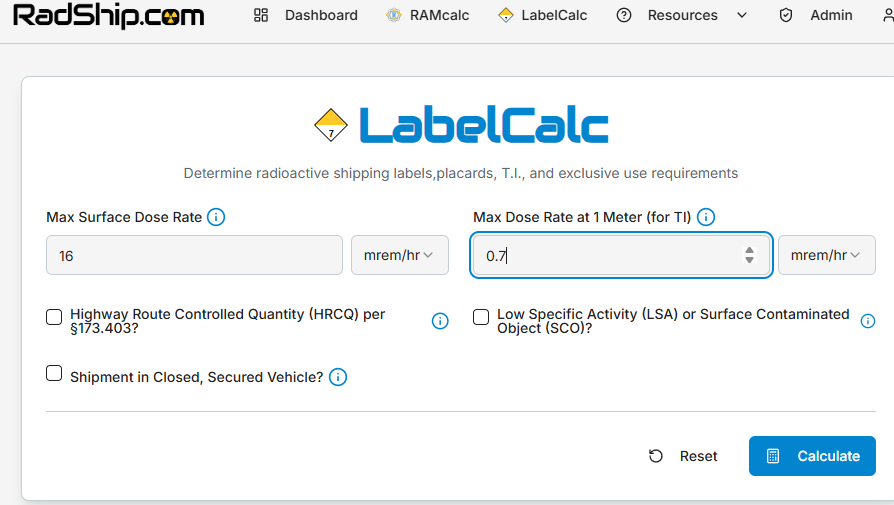
Step 2: Enter Dose Rate Measurements
You'll need two measurements from your package:
- Contact Dose Rate - Maximum radiation level at any point on the external surface of the package
- Dose Rate at 1 Meter - Radiation level measured at 1 meter (3.3 feet) from the package surface
Enter these values in millirem per hour (mrem/hr) or millisieverts per hour (mSv/hr).
Step 3: Review Label Determination
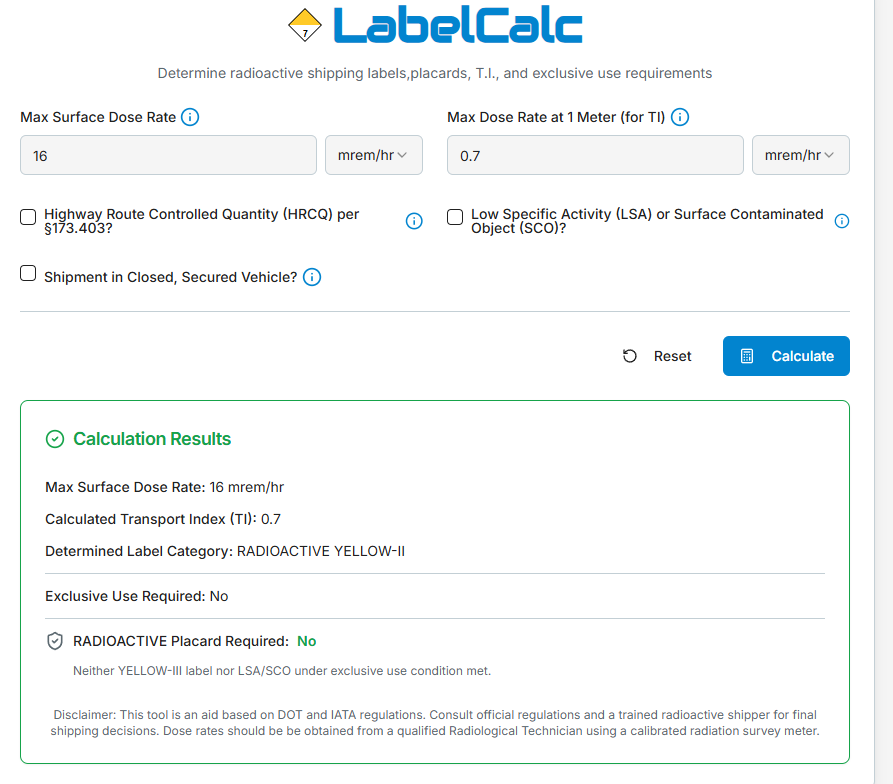
LabelCalc compares your measurements against regulatory criteria and displays the required label:
- WHITE-I - Surface dose rate ≤ 0.5 mrem/hr, TI = 0
- YELLOW-II - Surface dose rate ≤ 50 mrem/hr, TI ≤ 1.0
- YELLOW-III - Surface dose rate ≤ 200 mrem/hr, TI ≤ 10
Step 4: Check Your Transport Index (TI)
The Transport Index is automatically calculated from your 1-meter dose rate. This value:
- Must be displayed on Yellow-II and Yellow-III labels
- Determines how many packages can be transported together
- Affects vehicle placarding requirements
Step 5: Review Additional Requirements
Based on your dose rates, LabelCalc also indicates:
- Placard Requirements - Whether the vehicle needs RADIOACTIVE placards
- Exclusive Use - Whether the shipment requires exclusive use of the vehicle
- Special Conditions - Any additional handling or transport restrictions
Fissile materials are radioactive isotopes capable of sustaining a nuclear chain reaction. These materials have additional shipping requirements beyond standard radioactive material regulations to prevent criticality (unintended chain reaction).
Fissile Materials Defined by 49 CFR § 173.403
Per DOT regulations, fissile materials include ONLY these four isotopes:
- Plutonium-239 (Pu-239)
- Plutonium-241 (Pu-241)
- Uranium-233 (U-233)
- Uranium-235 (U-235)
Or any combination of these radionuclides.
Important: Not All Uranium is Fissile
The regulation explicitly excludes:
- ✅ Natural uranium (0.72% U-235) - use "U (nat)" in calculator
- ✅ Depleted uranium (<0.72% U-235) - use "U (dep)" in calculator
- ✅ Unirradiated natural uranium or depleted uranium
Even though these contain U-235, they are not classified as fissile for shipping purposes and do not require special fissile packaging.
What This Means for Shipping
If your package contains fissile material, you must either:
- Qualify for a fissile exception under 49 CFR § 173.453 (a)-(f), OR
- Use approved fissile packaging (Type AF, B(U)F, or B(M)F) with criticality controls
The RAMcalc calculator automatically evaluates all six fissile exceptions and tells you whether your material qualifies.
📖 Regulations:
49 CFR § 173.403 - Definitions
49 CFR § 173.453 - Fissile Exceptions
Exception (a): Small Quantities (≤2 Grams)
Regulation: "An individual package containing 2 grams or less of fissile material." - 49 CFR § 173.453(a)
Requirements
- Total fissile mass ≤ 2.000 grams per package
- No other requirements - simplest exemption
- No moderator restrictions
- No nonfissile material ratio needed
How to Use in Calculator
Step 1: Enter your fissile material(s)
Examples: Pu-239, U-233, U-235, or Pu-241
Step 2: Enter mass in grams
Must be ≤2.000 grams total. If you have multiple fissile isotopes, the calculator automatically sums them.
Step 3: Click "Calculate Compliance"
The Fissile Package Information section will appear automatically.
What You'll See
✅ Blue card: "Fissile-Excepted"
✅ Message: "Total fissile mass (X.XXX g) ≤ 2 g. Meets § 173.453(a)."
✅ Shipping papers notation: "Fissile Excepted" per § 172.203(d)(6)
Examples
| Material | Mass | Result |
|---|---|---|
| Pu-239 | 1.5g | ✅ Excepted (a) |
| U-235 | 2.0g | ✅ Excepted (a) - at limit |
| U-233 | 2.001g | ❌ NOT Excepted - over limit |
| U-235: 1.0g Pu-239: 1.0g |
2.0g total | ✅ Excepted (a) |
Common Uses
- Medical calibration sources
- Small research samples
- Trace fissile contamination
- Quality control standards
Exception (b): With Non-fissile Material (≤15g)
Regulation: "An individual or bulk packaging containing 15 grams or less of fissile material provided the package has at least 200 grams of solid non-fissile material for every gram of fissile material." - 49 CFR § 173.453(b)
Requirements
- Total fissile mass: 2.001g - 15.000g (if ≤2g, use exception (a))
- Non-fissile ratio: ≥200g solid non-fissile per gram of fissile
- Lead, beryllium, graphite, and deuterium-enriched hydrogen may be present but must NOT be counted toward non-fissile mass
Formula
Required Non-fissile Mass = Fissile Mass × 200
| Fissile Mass | Required Non-fissile | Example Package |
|---|---|---|
| 5g | 1,000g (1 kg) | 5g U-235 in 1kg soil |
| 10g | 2,000g (2 kg) | 10g Pu-239 in 2kg concrete |
| 15g | 3,000g (3 kg) | 15g U-233 in 3kg glass matrix |
How to Use in Calculator
Step 1: Enter fissile material with mass 2.001g - 15.000g
Step 2: In the fissile section, enter:
Solid Nonfissile Mass (grams): the total solid non-fissile mass in the package. For exception (b) this may include the packaging itself — see the PHMSA interpretation below.
Step 3: If moderators are present (Pb, Be, graphite, D):
✓ Check the moderator box
✓ Enter "Total Moderator Mass (g)"
✓ The calculator automatically subtracts it from the non-fissile mass
Step 4: Classify
What Counts as "Solid Non-fissile Material"?
✅ DOES Count (include in mass):
- Soil, sand, dirt, clay
- Concrete, cement, grout
- Glass matrix (vitrified waste)
- Metal matrix (steel, aluminum, copper scrap)
- Ceramics, oxides, salts
- Plastic, resin encapsulation
- Packaging and containers (drums, boxes) — per PHMSA interpretation, below
- Solid void fill / dunnage material
❌ Does NOT Count (enter separately as moderator mass):
- Lead shielding
- Beryllium
- Graphite
- Deuterium-enriched (hydrogenous) materials
📜 PHMSA interpretation (Ref. 24-0124, issued 2025-07-10): for exception (b), the mass of the packaging itself can be counted toward the 200:1 solid non-fissile requirement — the rule reads on the package as presented for transport. Only the four moderator materials above are excluded. Note the contrast with exception (c): the 2000:1 rule counts only material commingled with the fissile material, so packaging does not count there — see the Exception (c) section.
What You'll See
The Fissile Evaluation panel shows both checks with live margins, for example:
Total fissile mass: 10 g ≤ 15 g ✓
Solid nonfissile mass: 2.000e+3 g ≥ 2.000e+3 g ✓
with the EXCEPTION APPLIED badge on row (b) when both pass. If a moderator mass
was entered, the panel's "Nonfissile solid (net of moderators)" line shows the subtraction.
Common Materials
- Contaminated equipment with fissile residue
- Soil with uranium/plutonium contamination
- Laboratory waste in solidified matrix
- Decommissioning debris
Exception (c): Low Concentration in Solid Matrix
Regulation: "Low concentrations of solid fissile material commingled with solid non-fissile material" with two requirements - 49 CFR § 173.453(c)
Dual Requirements (BOTH Must Be Met)
- Ratio requirement: ≥2000 grams non-fissile per gram of fissile
- Density limit: ≤180 grams fissile per 360 kg of contiguous non-fissile material
Note: Lead, beryllium, graphite, and deuterium may be present but NOT counted toward non-fissile mass.
⚠️ Commingled means commingled. Exception (c) counts only non-fissile material distributed together with the fissile material within a contiguous mass of not more than 360 kg. The packaging itself, shielding, and other mass outside the material do not count here — unlike exception (b), where PHMSA interpretation Ref. 24-0124 allows the packaging mass to count toward the 200:1 ratio. Because one calculator field carries the non-fissile mass for both rules, the calculator asks you to attest that the entered mass is commingled before it will grant exception (c).
When to Use Exception (c)
Use (c) for materials with:
- Large non-fissile mass (hundreds of kg)
- Low fissile concentration
- Fissile >15g (too much for exception (b))
Examples
| Fissile Mass | Non-fissile Mass | Ratio Check | Density Check | Result |
|---|---|---|---|---|
| 50g U-235 | 100,000g (100 kg) | ✅ 2000:1 | ✅ 50g < 50kg limit | ✅ Excepted (c) |
| 180g Pu-239 | 360,000g (360 kg) | ✅ 2000:1 | ✅ Exactly at limit | ✅ Excepted (c) |
| 181g | 362,000g | ✅ 2000:1 | ❌ Over 180g/360kg | ❌ NOT Excepted |
| 100g | 199,999g | ❌ 1999.99:1 | N/A | ❌ NOT Excepted |
How to Use in Calculator
Step 1: Enter fissile material with mass >15g (or >2g without sufficient ratio for (b))
Step 2: In the fissile section, enter Solid Nonfissile Mass (grams) — the commingled non-fissile mass only (not packaging or shielding)
Step 3: Check the commingled attestation box that appears under the mass field — confirming the mass is distributed together with the fissile material within a contiguous 360 kg. Without it, row (c) on the Fissile Evaluation panel shows "needs: commingled attestation" and cannot grant the exception.
Step 4: Handle moderators if present (same as exception (b))
Step 5: Classify - both requirements must be met
What You'll See
The Fissile Evaluation panel shows both checks with live margins, for example:
Solid nonfissile mass: 3.200e+4 g ≥ 3.200e+4 g ✓
Total fissile mass: 16 g ≤ 16 g ✓
with the EXCEPTION APPLIED badge on row (c) when both pass and the attestation
is checked. Note the density limit scales with the material present: 180 g is the allowance per
full 360 kg, so 32 kg of commingled material allows at most 16 g of fissile.
Common Materials
- Large volumes of contaminated soil
- Solidified waste forms (large scale)
- Decommissioning rubble/debris
- Environmental remediation materials
Exception (d): Low-Enriched Uranium (≤1% U-235)
Regulation: "Uranium enriched in uranium-235 to a maximum of 1 percent by weight, and with total plutonium and uranium-233 content of up to 1 percent of the mass of uranium-235..." - 49 CFR § 173.453(d)
Requirements (All Must Be Met)
- U-235 enrichment ≤ 1.0% by weight
- Total Pu + U-233 content ≤ 1% of U-235 mass
- Be, graphite, D-enriched H < 5% of uranium mass
Enrichment Ranges Context
- 🟢 Natural Uranium: ~0.72% U-235 (use "U (nat)" - not fissile by regulation)
- 🟢 Qualifies for (d): 0.72% - 1.00% U-235
- 🟡 LEU but no exemption: 1.01% - 20% U-235
- 🟠 High-Enriched (HEU): >20% U-235 (heavily regulated)
Two Ways to Enter in Calculator
Method 1: Bulk Entry (When Exact Isotopic Composition Unknown)
Select from dropdown: "U (1% enriched)"
Pros:
- ✅ Quick and simple
- ✅ "Calc from mass" works (has defined specific activity)
- ✅ Automatically uses 1.0% enrichment
Limitations:
- ⚠️ Cannot verify Pu+U-233 content (assumes minimal)
- ⚠️ Uses approximate specific activity
- ⚠️ Shows amber warning about bulk entry
Method 2: Individual Isotopes (Most Accurate)
Enter each isotope separately:
- U-238: [mass in grams] - represents bulk material
- U-235: [mass in grams] - fissile component
- Pu-239: [mass if present]
- U-233: [mass if present]
Calculator auto-calculates and displays:
📊 Isotopic Composition (Auto-calculated)
Total Uranium: 1000.00 g
U-235 Enrichment: 0.990%
Pu+U-233: 0.000% of U-235 mass
Examples
| U-238 | U-235 | Enrichment | Pu-239 | Pu+U-233 % | Result |
|---|---|---|---|---|---|
| 990g | 10g | 1.000% | 0g | 0% | ✅ Excepted (d) |
| 989g | 10g | 1.001% | 0g | 0% | ❌ Enrichment over |
| 990g | 10g | 1.000% | 0.10g | 1.00% | ✅ Pu at limit |
| 990g | 10g | 1.000% | 0.11g | 1.10% | ❌ Pu over limit |
💡 Educational Guide
When you enter U-235 without U-238, a blue educational guide appears explaining:
- Typical enrichment ranges (natural, LEU, HEU)
- Why you should add U-238 for realistic enrichment
- That 100% enrichment (pure U-235) is extremely rare
Common Materials
- Research reactor fuel (0.95-1.0% enriched)
- TRIGA fuel elements
- University reactor materials
- Fresh LEU fuel assemblies
Exception (e): Uranyl Nitrate Solution
Regulation: "Liquid solutions of uranyl nitrate enriched in uranium-235 to a maximum of 2 percent by mass, with a total plutonium and uranium-233 content not exceeding 0.002 percent of the mass of uranium, and with a minimum nitrogen to uranium atomic ratio (N/U) of 2. The material must be contained in at least a DOT Type A package." - 49 CFR § 173.453(e)
Requirements (ALL Must Be Met)
- Material is liquid uranyl nitrate
- U-235 enrichment ≤ 2.0% by mass
- Nitrogen to Uranium (N/U) atomic ratio ≥ 2.0
- Pu + U-233 ≤ 0.002% of total uranium mass
- Activity must qualify for Type A package minimum (SoF > 0.001)
How to Use in Calculator
Step 1: Enter uranium material
- Option 1: Use bulk entry "U (1.5% enriched)" or similar
- Option 2: Enter U-235 + U-238 individually for exact enrichment
Step 2: Set Physical State to "Liquid"
Step 3: In Fissile Package Information section:
✓ Check "Uranyl Nitrate Solution?"
✓ Enter N/U Ratio (must be ≥2.0)
Step 4: Calculate Compliance
What You'll See
If all requirements met:
✅ Blue card: "Fissile-Excepted (e)"
✅ Message: "Uranyl nitrate solution: X.XX% U-235 ≤ 2%, N/U = X.X ≥ 2..."
If activity too low:
❌ Red card: "NOT Excepted"
❌ Message: "Uranyl nitrate meets chemical/enrichment requirements but activity is too low (SoF ≤ 0.001). Exemption (e) requires Type A package minimum."
Why Type A Minimum?
The regulation requires Type A packaging (not just excepted packaging) to ensure:
- Proper liquid containment (leak-tight)
- Adequate shielding
- Safety margin for fissile liquid solutions
- Not shipped in basic excepted package containers
Common Uses
- Medical isotope production (Mo-99 targets)
- Fuel reprocessing solutions
- Research reactor fuel preparation
- Enrichment facility materials
Exception (f): Low-Concentration Plutonium
Regulation: "Packages containing, individually, a total plutonium mass of not more than 1000 grams, of which not more than 20 percent by mass may consist of plutonium-239, plutonium-241, or any combination of these radionuclides." - 49 CFR § 173.453(f)
Requirements (BOTH Must Be Met)
- Total plutonium mass ≤ 1000 grams
- Pu-239 + Pu-241 ≤ 20% of total plutonium mass
Understanding Plutonium Compositions
Reactor-Grade Plutonium (typical):
- Pu-239: 50-60%
- Pu-240: 20-30%
- Pu-241: 10-15%
- Pu-238: 1-3%
- Pu-239/241 combined: ~65-75% ❌ Does NOT qualify for (f)
Materials That Might Qualify:
- Heavily irradiated plutonium with high Pu-238, Pu-240 content
- Mixed plutonium-uranium materials
- Plutonium with high Pu-242 content
How to Use in Calculator
Must enter individual plutonium isotopes for accurate Pu-239/241 percentage calculation:
Step 1: Add plutonium isotopes:
• Pu-238: [mass]
• Pu-239: [mass]
• Pu-240: [mass]
• Pu-241: [mass]
• Pu-242: [mass if present]
Step 2: Calculator auto-calculates and displays:
📊 Isotopic Composition (Auto-calculated)
Total Plutonium: 1000.00 g
Pu-239/241: 15.00% of total Pu
Step 3: Calculate Compliance
Examples
| Pu-238 | Pu-239 | Pu-240 | Pu-241 | Total Pu | Pu-239/241 % | Result |
|---|---|---|---|---|---|---|
| 800g | 100g | 50g | 50g | 1000g | 15% | ✅ Excepted (f) |
| 800g | 150g | 0g | 50g | 1000g | 20% | ✅ At limit |
| 785g | 151g | 0g | 64g | 1000g | 21.5% | ❌ % over limit |
| 799g | 150g | 0g | 52g | 1001g | 20.2% | ❌ Total mass over |
💡 Plutonium Composition Guide
When you enter only Pu-239 or Pu-241 without other Pu isotopes, a purple educational guide appears explaining:
- Typical plutonium compositions (reactor-grade vs weapons-grade)
- Why you should add Pu-238, Pu-240 for realistic calculations
- That 100% Pu-239 is extremely rare and heavily restricted
Common Materials (Rare Exemption)
- Heavily degraded/transformed plutonium
- Specific fuel cycle products
- Materials with high Pu-238 from decay
Note: Most reactor-grade plutonium will NOT qualify for exception (f) due to high Pu-239/241 percentage.
Common Fissile Material Mistakes
❌ Mistake 1: Entering Only U-235 (Implies 100% Enrichment)
Problem: User enters only U-235 without U-238, implying 100% enrichment (extremely rare, weapons-grade material)
Solution:
- Also add U-238 to represent the bulk uranium
- Calculator will auto-calculate realistic enrichment
- Watch for the blue "Uranium Enrichment Guide" that prompts you to add U-238
Example: For 3% enriched uranium, 1000g total:
• U-235: 30g (3% of 1000g)
• U-238: 970g (97% of 1000g)
✅ Calculator shows: "U-235 Enrichment: 3.000%"
❌ Mistake 2: Including Packaging/Shielding in Non-fissile Mass
Problem: User includes lead shielding, drum weight, or container mass in "Solid Non-fissile Mass"
Solution:
- Enter ONLY the matrix/carrier material mass (soil, concrete, glass, etc.)
- Do NOT include: lead shielding, container weight, void fill
- If moderators (Pb, Be, graphite, D) are present: Check the boxes and enter their mass separately - calculator subtracts automatically
❌ Mistake 3: Not Subtracting Moderator Mass
Problem: User enters 2100g total solid, but 100g is lead shielding - incorrectly counts lead toward non-fissile
Solution:
- Enter total solid mass: 2100g
- Check "Lead" box
- Enter "Total Moderator Mass": 100g
- ✅ Calculator shows: "effective non-fissile (2000.0 g = 2100.0g - 100.0g moderators)"
❌ Mistake 4: Assuming Natural Uranium is Fissile
Problem: User thinks natural uranium (0.72% U-235) requires fissile controls
Solution:
- Natural uranium is explicitly excluded from fissile definition (49 CFR § 173.403)
- Use "U (nat)" entry in calculator - no fissile requirements apply
- Same for depleted uranium - use "U (dep)"
❌ Mistake 5: Expecting Fissile-Excepted = Excepted Package
Problem: Material is "fissile-excepted" but user expects UN2910 (Excepted Package), gets UN2915 (Type A, fissile-excepted) instead
Explanation:
- "Fissile-excepted" means you don't need special fissile packaging (Type AF, B(U)F)
- You still need appropriate packaging for the activity level
- If activity is Type A level → UN2915 (normal form) or UN3332 (special form), fissile-excepted
- If activity is Excepted level → UN2910 (if fissile-excepted)
❌ Mistake 6: Wrong UN Number for Non-Excepted Fissile
Problem: Material has low activity (would be UN2910) but fissile is NOT excepted - shows UN2910 anyway
How Calculator Handles This:
- When fissile is NOT excepted, calculator overrides activity-based classification
- Upgrades to minimum Type A: UN3327 (normal form) or UN3333 (special form), fissile
- Shows red card: "FISSILE Label Required"
- Cannot ship non-excepted fissile in excepted packages
❌ Mistake 7: Using Bulk LEU Entry for Exemption (d) Verification
Problem: User selects "U (5% enriched)" expecting it to fail exemption (d) check, but gets generic "not excepted" message
Solution:
- Bulk entries with enrichment >1% will not qualify for (d)
- For specific Pu+U-233 content verification, enter individual isotopes
- Auto-calculation provides detailed breakdown
❌ Mistake 8: Expecting U-233 to Qualify for § 173.453(d)
Problem: User enters U-233 expecting to qualify for the low-enriched uranium exemption (§ 173.453(d))
Explanation:
- § 173.453(d) is specifically for uranium where U-235 is the fissile concern
- U-233 is a different fissile pathway - produced from thorium, not enriched from natural uranium
- U-233 cannot use the "≤1% U-235 enrichment" exemption regardless of amount
- U-233 must qualify under other exemptions: § 173.453(a) (≤2g), § 173.453(b) (≤15g with nonfissile ratio), or ship as fissile
Solution:
- For U-233 ≤2g: Qualifies for § 173.453(a) - simplest exemption
- For U-233 >2g: Must meet § 173.453(b) or (c) requirements, or ship as fissile (UN3327, UN3328, UN3330, or UN3333)
Getting Help
If you're unsure about your material:
- 📧 Contact your radiation safety officer
- 📄 Check your material characterization certificate
- 📞 Contact RadShip.com support
- 📖 Review 49 CFR Part 173 Subpart I
Remember: The calculator helps with classification, but final shipping decisions should be verified by qualified personnel.